Install the robotic arm
Install the robotic arm
For Bittle X+Arm with BiBoard V1
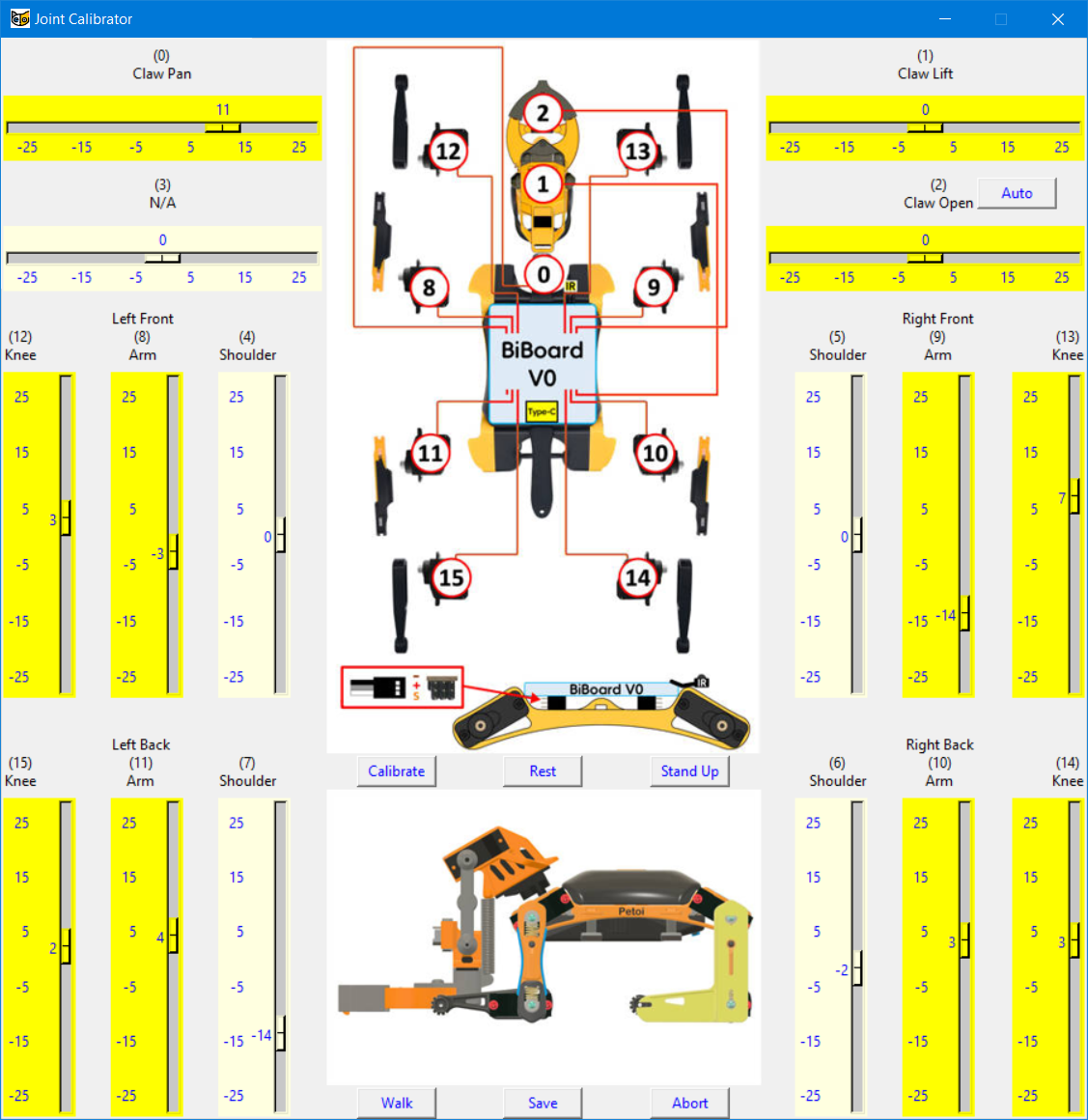
For Bittle X+Arm with BiBoard V0
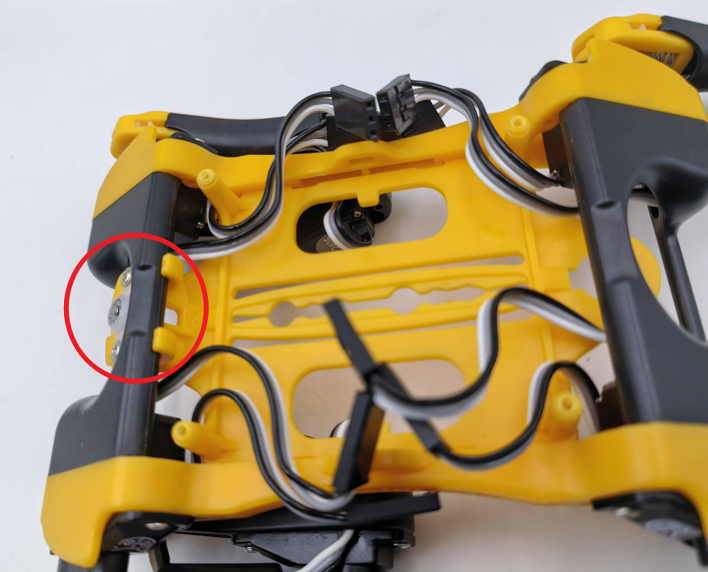 
{% endhint %}
Installing the neck servo is the same as [installing the head](/mobile-app/calibrator/bittle-bittle-x.md#install-the-head) of Bittle.
Installing the leg servos is the same as [installing the legs](/mobile-app/calibrator/bittle-bittle-x.md#install-the-legs) of Bittle.
### Install the robot arm
This robot arm is already fully assembled. After finishing calibrating the neck servo and the leg servos, power off the robot and [install](/extensible-modules/robot-arm.md#installation) the servo slot on the neck servo with two M2\*5 self-tapping screws.
Then, power on the robot, and do the joint calibration for the servos on the robot arm.
#### Fine-tuning
{% hint style="info" %}
The **pre-assembled** robot should already have the components adequately installed. You can do the joint calibration for fine-tuning directly, without needing to uninstall the head and legs.
{% endhint %}
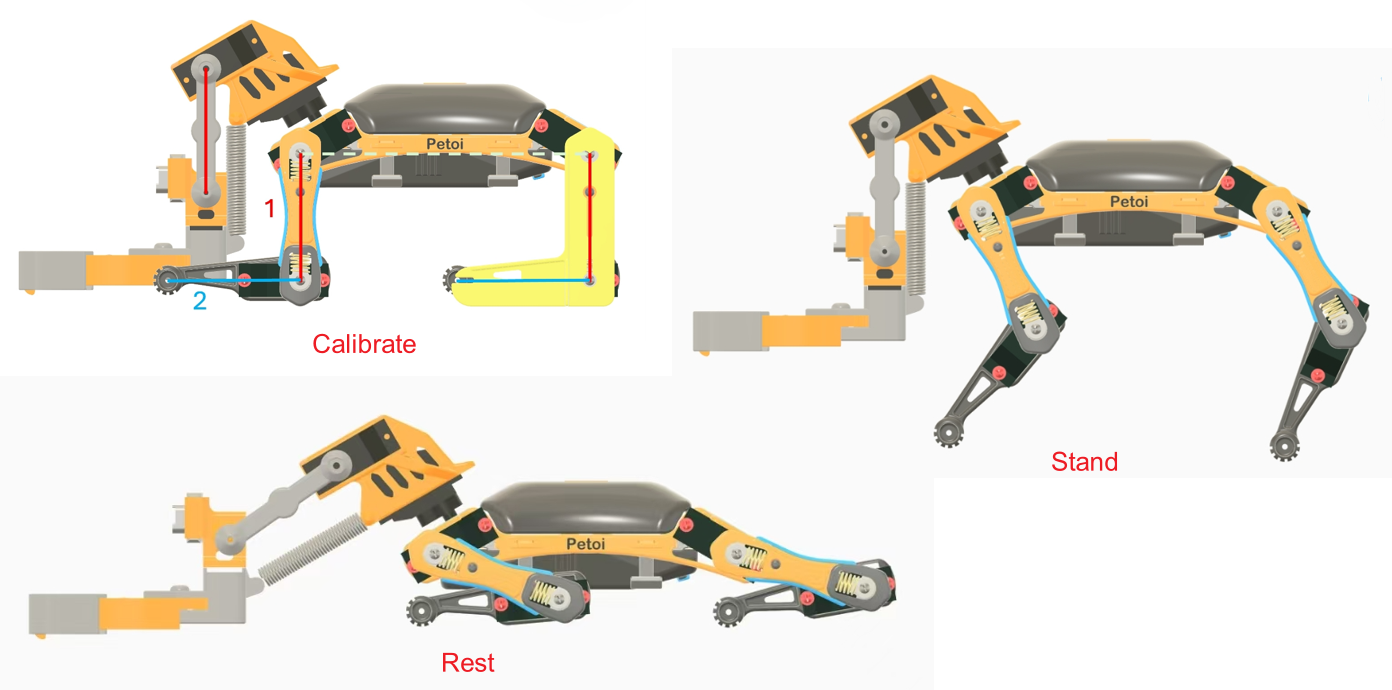
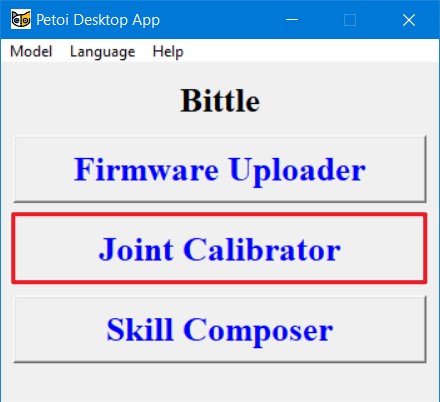
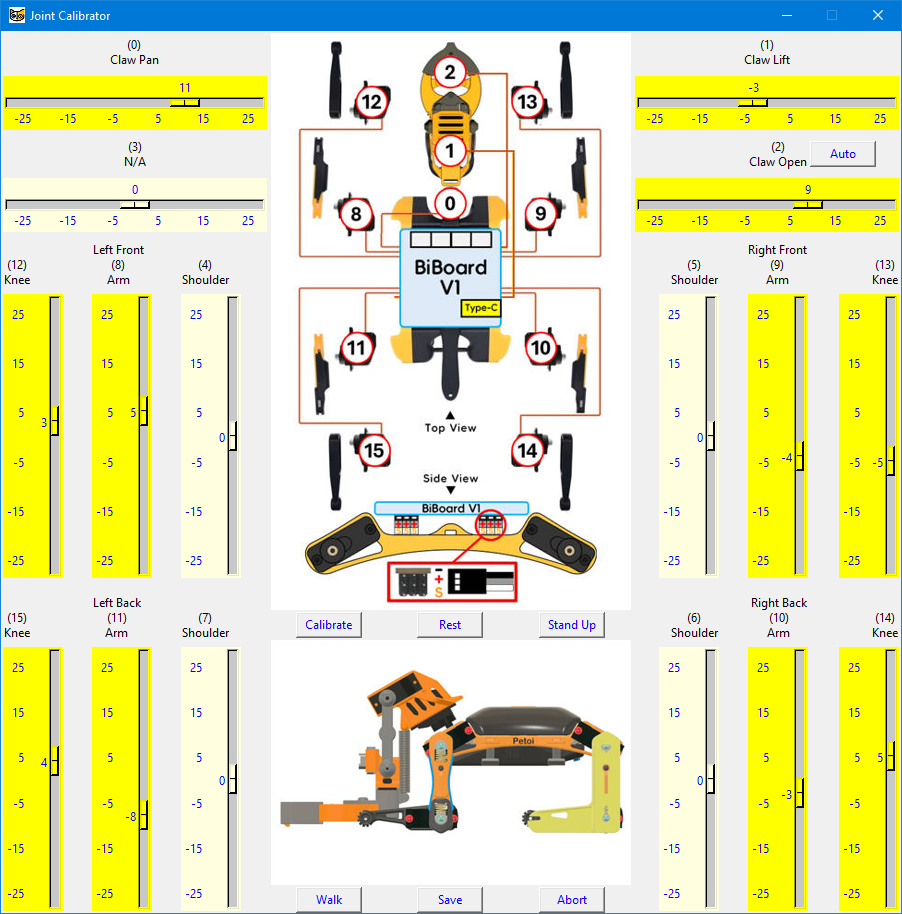
Please use the L-shaped calibration tool included in the package as a calibration reference. According to the joint numbers shown in the calibration interface picture, click and drag the corresponding joint sliders or click the blank areas of the slider tracks to fine-tune the joints to a right angle.
Please note that when calibrating the servos, adjust the upper leg first, then change the lower leg.


{% hint style="info" %}
If the offset is more than +/-9 degrees, you need to remove the corresponding leg and reinstall it by rotating one tooth and then dragging the corresponding slider. For example, when it is adjusted to +9 and still not right, remove the corresponding leg and shift one tooth when attaching it. Then, you should get a smaller offset in the opposite direction.
{% endhint %}
The process of fine-tuning the legs and the neck servo (**joint index 0**) is the same as that of [Bittle / Bittle X's](https://guide.petoi.com/desktop-app/joint-calibrator/bittle-bittle-x#fine-tuning) (as above).
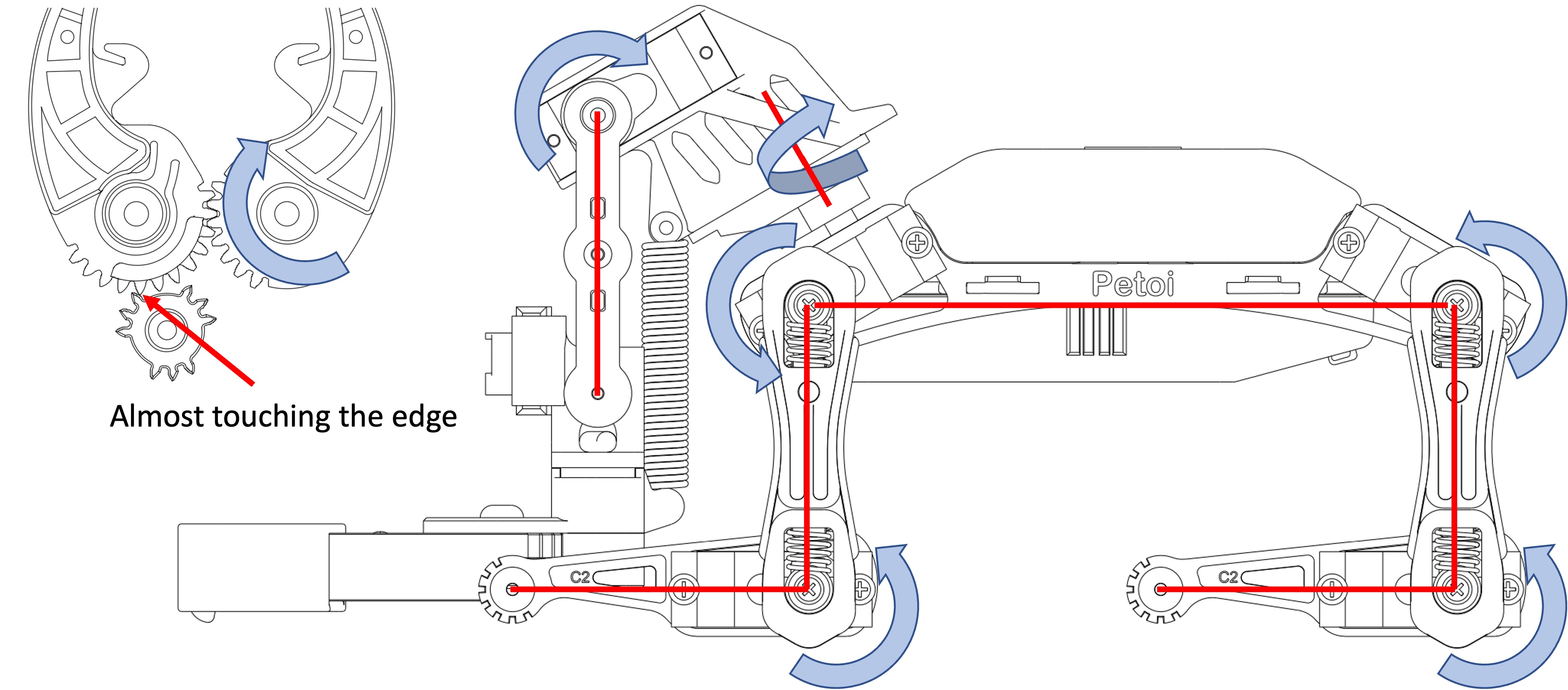
Please click the blank part of the slider track and follow the calibration posture below to fine-tune **Servo 1** (**joint index 1**) on the robotic arm.
Please click the **Auto** button to fine-tune the claw servo (**joint index 2**) on the robotic arm.
You can also manually click the blank part of the corresponding slider track and adjust the gear on the servo output shaft to the position shown in the figure above.
### Validation and Save data

{% endhint %}
Installing the neck servo is the same as [installing the head](/mobile-app/calibrator/bittle-bittle-x.md#install-the-head) of Bittle.
Installing the leg servos is the same as [installing the legs](/mobile-app/calibrator/bittle-bittle-x.md#install-the-legs) of Bittle.
### Install the robot arm
This robot arm is already fully assembled. After finishing calibrating the neck servo and the leg servos, power off the robot and [install](/extensible-modules/robot-arm.md#installation) the servo slot on the neck servo with two M2\*5 self-tapping screws.
Then, power on the robot, and do the joint calibration for the servos on the robot arm.
#### Fine-tuning
{% hint style="info" %}
The **pre-assembled** robot should already have the components adequately installed. You can do the joint calibration for fine-tuning directly, without needing to uninstall the head and legs.
{% endhint %}
Please use the L-shaped calibration tool included in the package as a calibration reference. According to the joint numbers shown in the calibration interface picture, click and drag the corresponding joint sliders or click the blank areas of the slider tracks to fine-tune the joints to a right angle.
Please note that when calibrating the servos, adjust the upper leg first, then change the lower leg.


{% hint style="info" %}
If the offset is more than +/-9 degrees, you need to remove the corresponding leg and reinstall it by rotating one tooth and then dragging the corresponding slider. For example, when it is adjusted to +9 and still not right, remove the corresponding leg and shift one tooth when attaching it. Then, you should get a smaller offset in the opposite direction.
{% endhint %}
The process of fine-tuning the legs and the neck servo (**joint index 0**) is the same as that of [Bittle / Bittle X's](https://guide.petoi.com/desktop-app/joint-calibrator/bittle-bittle-x#fine-tuning) (as above).
Please click the blank part of the slider track and follow the calibration posture below to fine-tune **Servo 1** (**joint index 1**) on the robotic arm.
Please click the **Auto** button to fine-tune the claw servo (**joint index 2**) on the robotic arm.
You can also manually click the blank part of the corresponding slider track and adjust the gear on the servo output shaft to the position shown in the figure above.
### Validation and Save data