Firmware Uploader

This manual for Beginner. Makes it easier for you to get started with the robot(Nybble / Bittle ).

** Download the latest version of the Petoi Desktop APP. **

For detailed installation tutorials and usage instructions, please refer to Desktop APP Introduction.

Connect the mainboard to the computer

You can connect the computer to the mainboard using a USB cable, following the instructions on the subsequent sub-pages (NyBoard / BiBoard V0 / BiBoard V1), which are specific to the robot's mainboard model.

Upload the firmware using the Petoi Desktop app

Open the PetoiDesktopApp

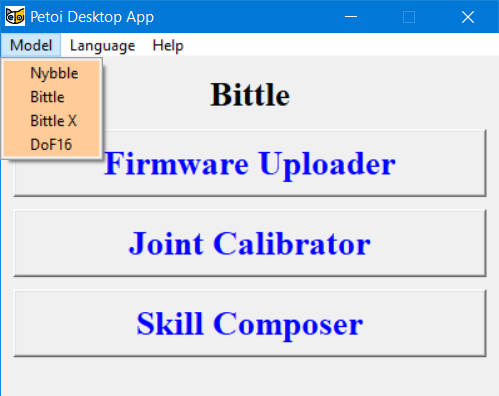
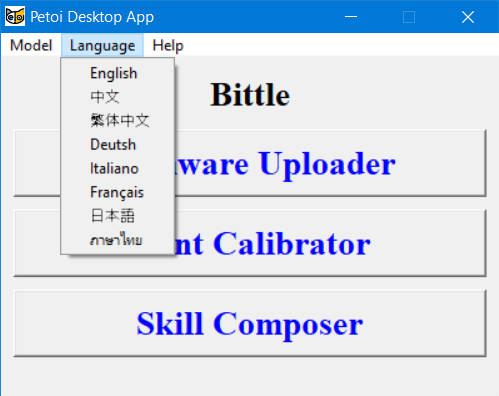
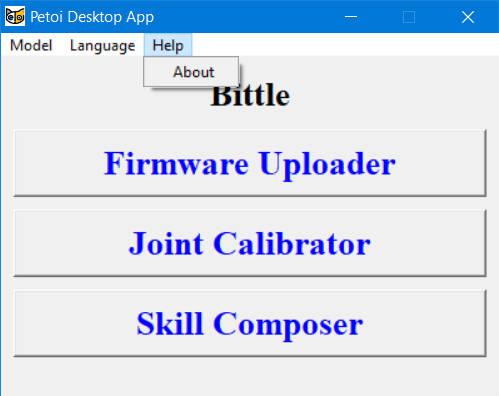
After properly connecting the mainboard with the computer via a USB data cable, open the PetoiDesktopApp (for Windows: UI.exe / for Mac: Petoi Desktop App), and select your Model and Language.

Model
Language
Help

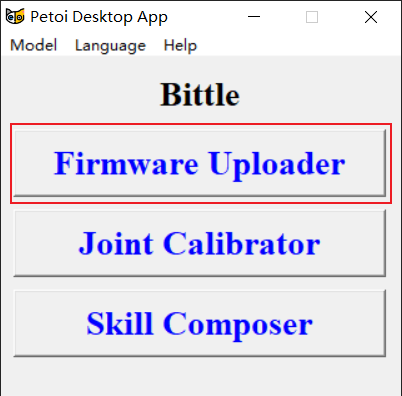
Click the Firmware Uploader button

Main interface

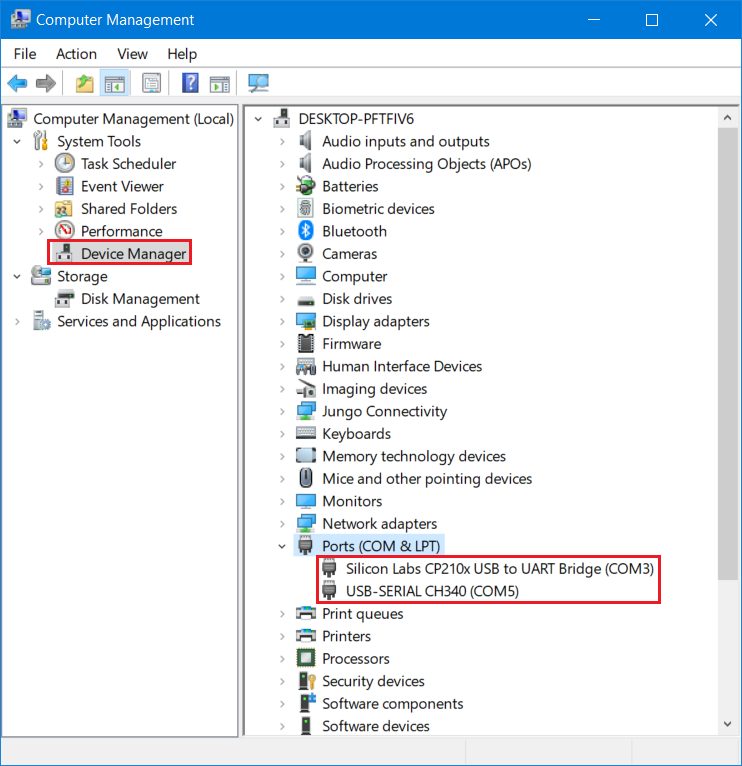
Auto Detect the Serial Port

If there is no serial port or more than one serial port is detected by the desktop app:

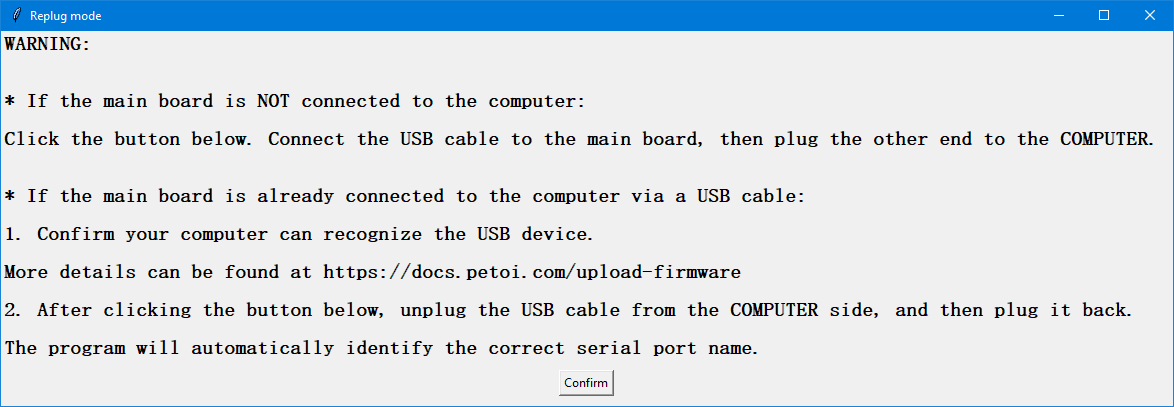
After clicking the Firmware Uploader button, there will be a message box prompt as follows:

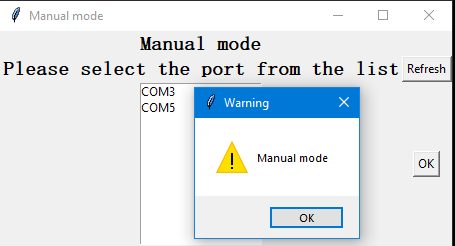
Please follow the prompts in the message box. After clicking the Confirm button, If you complete the prompts within 10 seconds, the desktop app will automatically identify the serial port name connecting the robot to the computer. If you complete the operation of unplugging and plugging the USB interface on the computer for more than 10 seconds, the desktop application will enter the manual selection of the serial port name mode:

Click the OK button in the Warning message box first, then you can refresh the serial port list or select one of them (e.g. COM3) and click the OK button in the Manual mode window to open the Firmware Uploader interface as follows:

Once the Firmware Uploader interface is opened, you can also unplug and replug the USB cable from the COMPUTER side. The desktop app will automatically identify the serial port name used to connect the robot to the computer.

If you unplug the COM5 and replug it on the computer side, it will be discovered by the desktop app as follows:

Select the correct options to upload the latest firmware.

Options
Values
Note

Software version

1.0

2.0 (default)

The 1.0 version is obsolete.

Board version

NyBoard_V1_0 (default) NyBoard_V1_1 NyBoard_V1_2 BiBoard_V0_1

BiBoard_V0_2 BiBoard_V1_0

BiBoard_V0_1 or BiBoard_V0_2 is for Bittle X. BiBoard_V1_0 is for Bittle X V2 and Nybble Q.

Product

Bittle (default)

Bittle X

Bittle X+Arm Nybble Nybble Q

Mode

Standard (default) RandomMind Voice Mind+ Camera Ultrasonic RandomMind_Ultrasonic Light Touch PIR Gesture IR distance

For NyBoard, these 12 modes can be selected. All of these modes apply to both Bittle and Nybble.

For BiBoard, you only need to upload the Standard mode firmware, and you can switch between different modes via serial port commands. [1]

Serial port

Auto detection or by manual selection.

You can find the correct one through unplug and replug the USB socket on the computer side

[1] You can use the serial commands to switch modes for BiBoard: For BiBoard, Mind+ mode is supported by default, so it doesn't require a serial command to switch on. You can learn about the function of each module through the EXTENSIBLE MODULES.

Uploading options

Please follow the instructions on the subsequent sub-pages (NyBoard / BiBoard V0 and BiBoard V1), depending on the type of your robot's mainboard.

Finish uploading the firmware

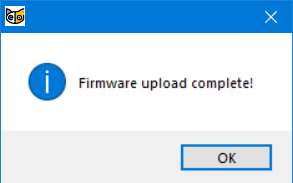
After the upload, the status bar will update the corresponding result, such as the success or failure of firmware uploading. If the uploading is successful, a message window of "Firmware upload complete!" will pop up simultaneously.

Note:

  1. For NyBoard, when you open the software and upload the firmware for the first time, the program will first upload the "Parameters" firmware and then the "Main function" firmware.

  2. After uploading the firmware, if the NyBoard or BiBoard V1 is not connected to the battery and powered on, you will hear repetitive descending melodies, indicating that the battery is low or disconnected. You need to connect the battery and turn on its power.

Check the log file

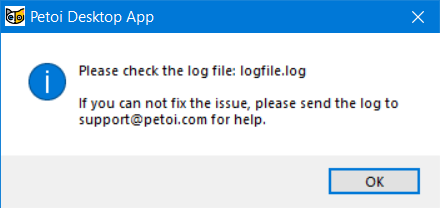
If the uploading fails, the following message box will pop up:

The log file is located at:

  • For Windows: The log file is in the same directory as UI.exe

  • For macOS: You can check the log file as follows:

When you contact [email protected], please attach the log file to your email.

Run Firmware Uploader in the terminal

There may be some OS platform compatibility issues with different computers.

You can still run the app directly from your terminal:

  1. Go to OpenCat/pyUI/ in your terminal.

  2. Install PySerial and Pillow for your Python installation. You may get a clean Anaconda environment and pip3 install pyserial pillow

  3. Run python3 UI.py

For NyBoard, the firmware uploader calls the application avrdude to upload firmware files to the mainboard.

For BiBoard, the firmware uploader calls the application esptool to upload firmware files to the mainboard.

Linux OS

For Linux system users, in addition to the above steps, you also need to perform the following steps:

1. Install avrdude

  • Fedora: dnf install avrdude

  • CentOS: yum install avrdude

  • Debian / Ubuntu: apt install avrdude

2. Modify the variable avrdudeconfPath in FirmwareUploader.py

  • Fedora / CentOS : avrdudeconfPath = '/etc/avrdude/'

  • Debian / Ubuntu : avrdudeconfPath = '/etc/'

If you have experience with Arduino IDE programming, you will see the same log message when uploading.

Last updated