> For the complete documentation index, see [llms.txt](https://guide.petoi.com/llms.txt). Markdown versions of documentation pages are available by appending `.md` to page URLs; this page is available as [Markdown](https://guide.petoi.com/faq-frequently-asked-questions.md).
# FAQ(Frequently Asked Questions)
## Bittle vs Bittle X
### The doc seems to refer to Bittle and Bittle X interchangeably. Why is that?
Bittle and Bittle X are [from the same family](https://www.petoi.com/pages/bittle-smart-robot-dog-model-overview) and share a lot of common things. But Bittle X uses BiBoard, and Bittle uses NyBoard. So we just refer to Bittle most of the time without specifically mentioning Bittle X.
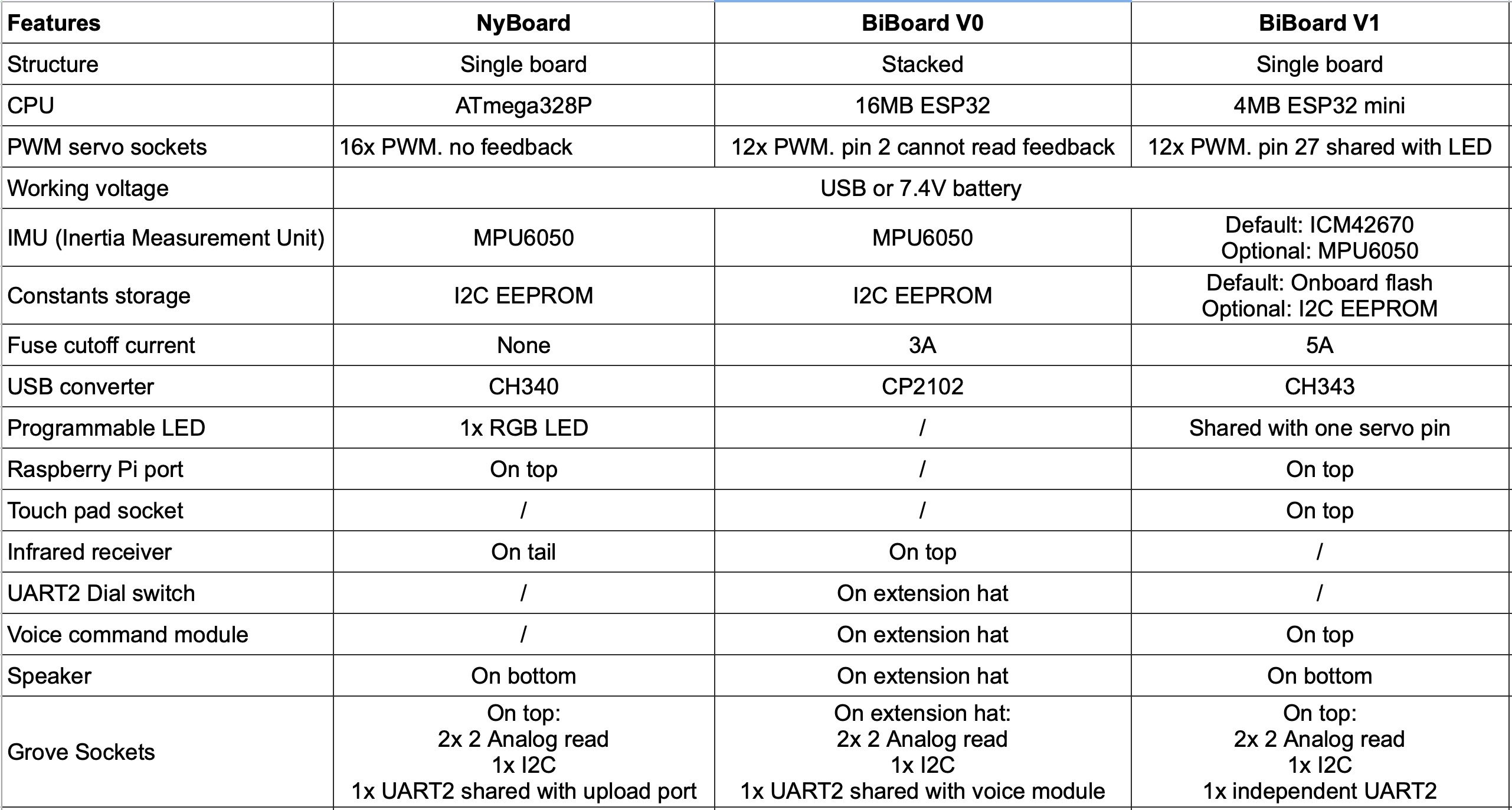
## The differences in mainboards
The differences in specifications of different mainboards are shown in the figure below:
## Sound
### What do different melodies from the board mean?
Please refer to the [**Buzzer beep meaning**](https://bittle.petoi.com/2-open-the-box#buzzer-beep-meaning)**.**
### How to adjust the buzzer volume?
* For NyBoard, please refer to [Mute/Unmute the buzzer beep](https://bittle.petoi.com/2-open-the-box#mute-unmute-the-buzzer-beep).
* For BiBoard, please refer to [Adjust the buzzer volume](https://bittle-x.petoi.com/2-open-the-box#adjust-the-buzzer-volume).
## Software
### BiBoard can not upload firmware on Windows OS.
The following error message appears when uploading firmware:
```
Serial port COM*:
Connecting.............................
COM* failed to connect: Failed to connect to Espressif device: Wrong boot mode detected(0x13)
A fatal error occurred: Could not connect to an Espressif device...
```
Please first check whether the serial port is correct in **Device Manager.** If the serial port is correct,
Especially for **Windows 11** computers with **AMD** CPUs, please try **one** of the following two methods:
* **Connect using a USB hub**
* **Physically "force" into mode**:
You can intervene manually: Due to potential delays in switching DTR/RTS signals (automatic reset circuit) under Windows, the AMD chipset may experience automatic...
1. Click the "Download/Flash" command in the terminal or burning software.
2. When the screen displays "Connecting...:
· Press and hold the **BOOT** button on the board.
· Briefly press the **RESET** button and release.
3. Continue holding the **BOOT** button until you see the progress bar start scrolling (Packet content...), then release.
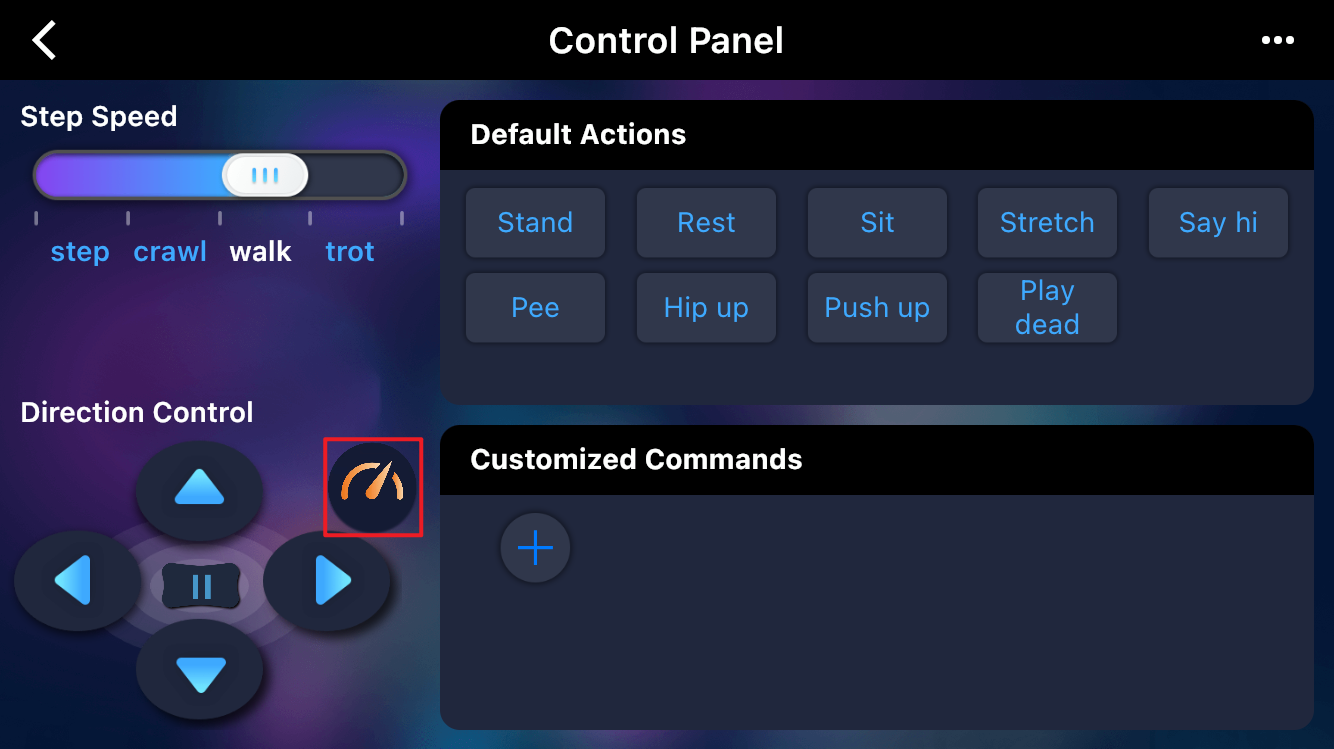
### When using the mobile app, I found that my Petoi robot was walking very slowly.
Try turning off the Gyro in the [mobile app](https://guide.petoi.com/mobile-app/controller#gaits), as shown in the following picture:
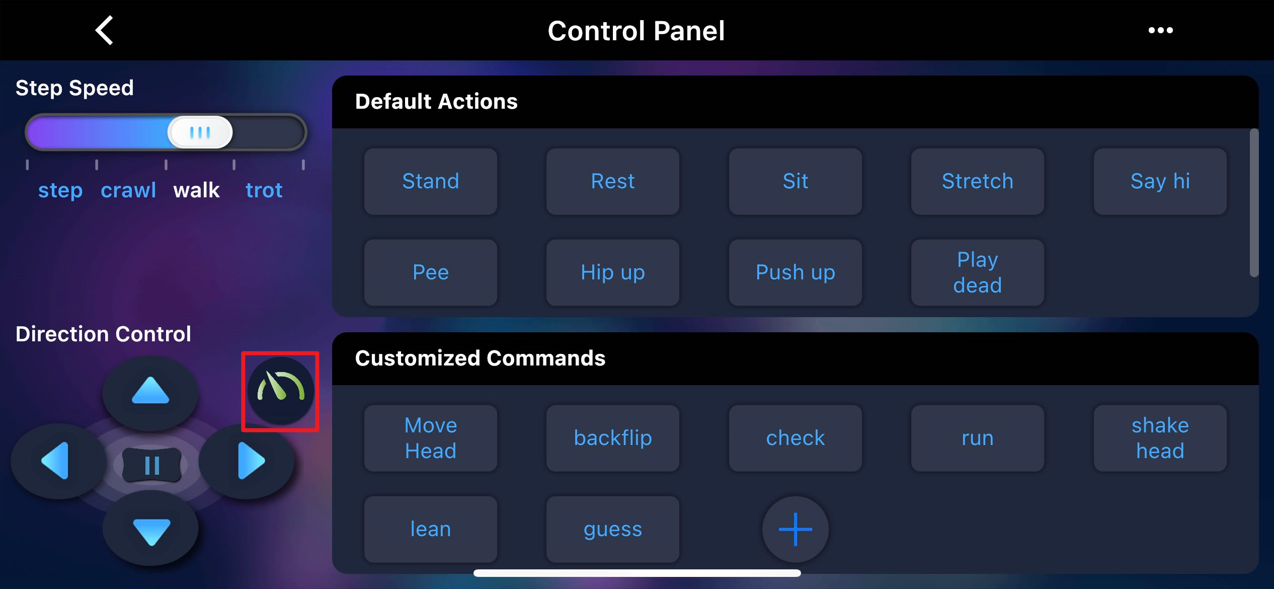
### When using the mobile app, my Petoi robot can't self-right after it's upside down.
Try turning on the Gyro in the [mobile app](https://guide.petoi.com/mobile-app/controller#gaits), as shown in the following picture:
### My Petoi robot doesn't walk very stably.
* Make sure you [calibrate](https://bittle.petoi.com/6-calibration) the joints with the included L-shaped tuner and understand the references
* Remove the rubber toe covers
* [Turning off the Gyro](#when-using-the-smartphone-app-i-found-that-bittle-was-walking-very-slowly.) will make slow gaits more stable
* You may need to use the Petoi Desktop App -> Tools -> calibrate gyroscope to reset the gyroscope.
### When I use the play dead command with the mobile app, my Petoi robot seems to be stuck in a forever loop trying to play dead again and again.
There's a known bug in one of the older firmware. Please [upgrade to the latest firmware](/desktop-app/firmware-uploader.md).
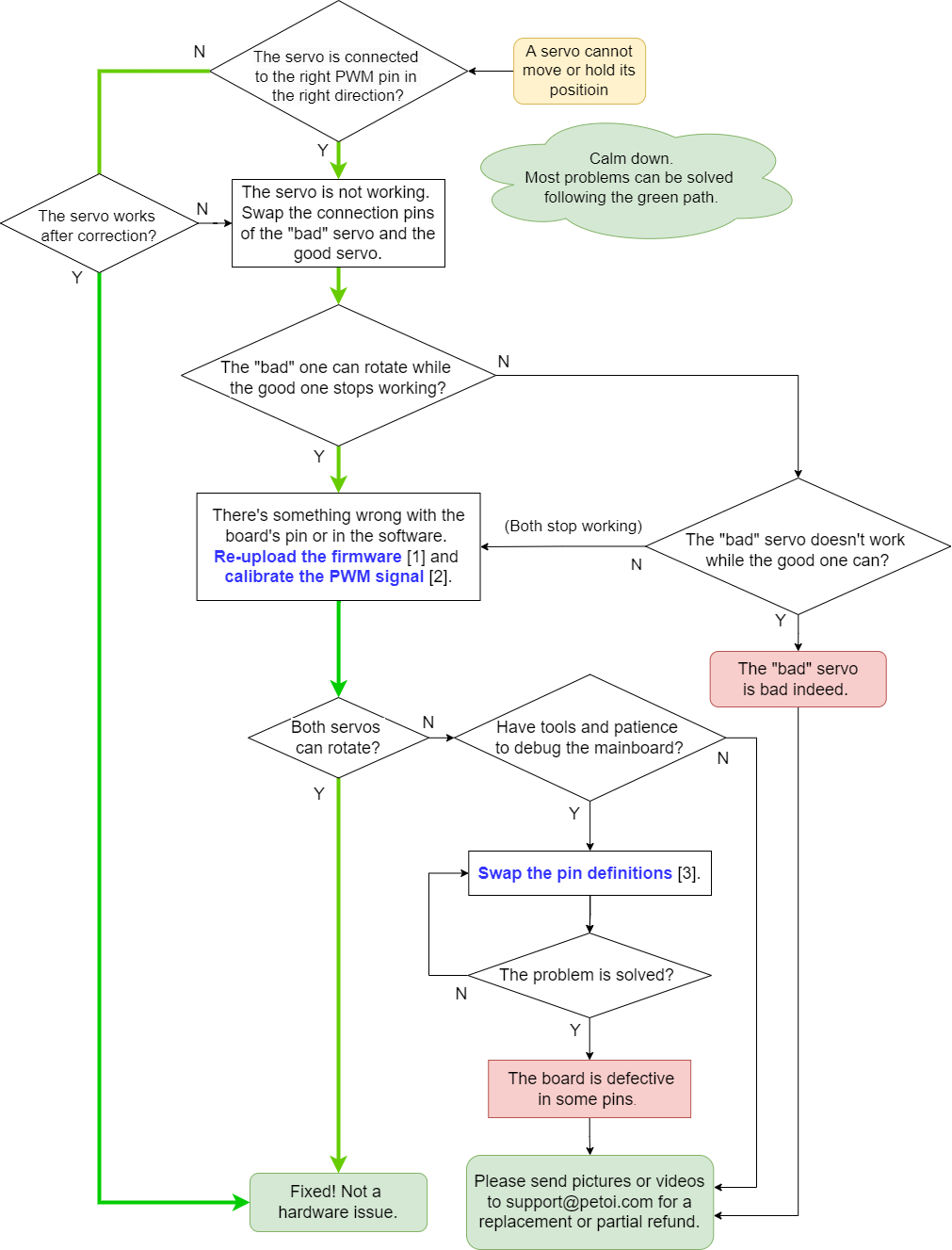
### The robot servos don't seem to be working. How to debug the servos?
{% hint style="info" %}
\[1]. [Re-upload the firmware](/desktop-app/firmware-uploader.md)
\[2]. [Calibrate the PWM signal](https://guide.petoi.com/arduino-ide/upload-sketch-for-nyboard#id-9.-calibrate-the-servo-controller-chip-pca9685-on-the-nyboard)
\[3]. [Swap the pin definitions](https://guide.petoi.com/arduino-ide/upload-sketch-for-nyboard#id-12.-modify-the-joint-pin-mapping)
{% endhint %}
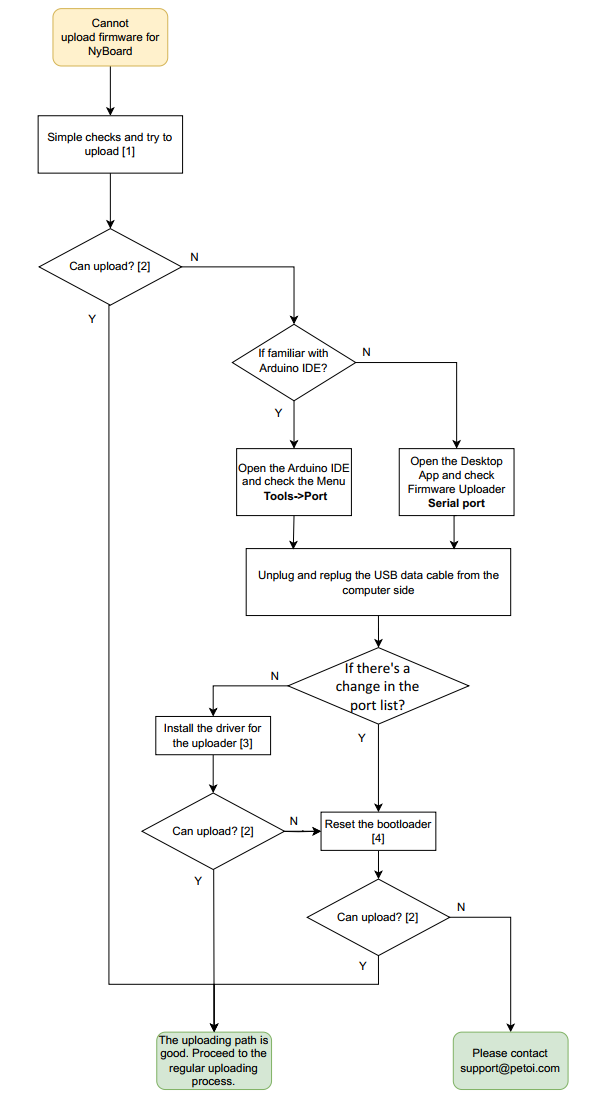
### NyBoard can't upload firmware
The error that occurs when uploading the sketch is shown below:

{% hint style="info" %}
\[1]. Do the simple checks as follows:
* Make sure there's no other program using the serial port, If you have opened the Arduino IDE and its serial monitor, it may occupy the serial port.
* Make sure the uploader is connected to the NyBoard [in the right way](https://guide.petoi.com/communication-modules/usb-downloader-ch340c#connect-nyboard).
* Make sure you're using the USB cable that comes with the kit, some USB cables may only have two wires for powering, but no data wires.
\[2]. For this operation, you can use a simple test sketch for convenience.
* With the Petoi Desktop App, select the microcontroller type: **NyBoard\_V1\_\***, then you can upgrade the **Standard** firmware.
* With Arduino IDE, select the microcontroller type: **Board-> Arduino AVR Boards-> Arduino Uno**, then you can upload the sketch: **File-> Examples->04.Communication->ASCIITable.**
\[3]. Install [the USB uploader driver](https://guide.petoi.com/communication-modules/usb-downloader-ch340c#the-drivers).
\[4]. [Reset the bootloader](https://guide.petoi.com/technical-support/burn-bootloader-for-nyboard).
{% endhint %}
### Why are there two calibration stages?
There are two calibration steps for different components.
Because the controller board has limited resources, we divide the program into two stages.
In the first stage, we upload the program and large data to the onboard EEPROM (hard disk) and use the remaining programming space to calibrate the IMU, a sensor that measures the body orientation. The board should be leveled and untouched during the (IMU) calibration.
In the second stage, we upload the standard functional code. For the first-time configuration, we need to enter the (joint) calibration state and attach the legs in the right direction.
If you use the Arduino IDE to set up the board, you will handle those stages explicitly. The Petoi Desktop App can finish the two-stage uploading in the background. The mobile app can work only with an already configured board. Its (joint) calibration is only for attaching the legs.
### If I buy the pre-assembled Bittle, does it still need to be calibrated?
If your robot doesn't walk very stably, you may need to use the Petoi Desktop App/Petoi Mobile app/Arduino IDE [to fine-tune the joints](https://bittle.petoi.com/6-calibration).
### If I buy a microcontroller such as NyBoard or BiBoard alone, do I have to buy a separate software program to make it work?
Our microcontrollers are specifically designed for our robots. The open source code is free to use and can be downloaded from [GitHub](https://github.com/PetoiCamp).
### Could Python be used to control any Petoi robot?
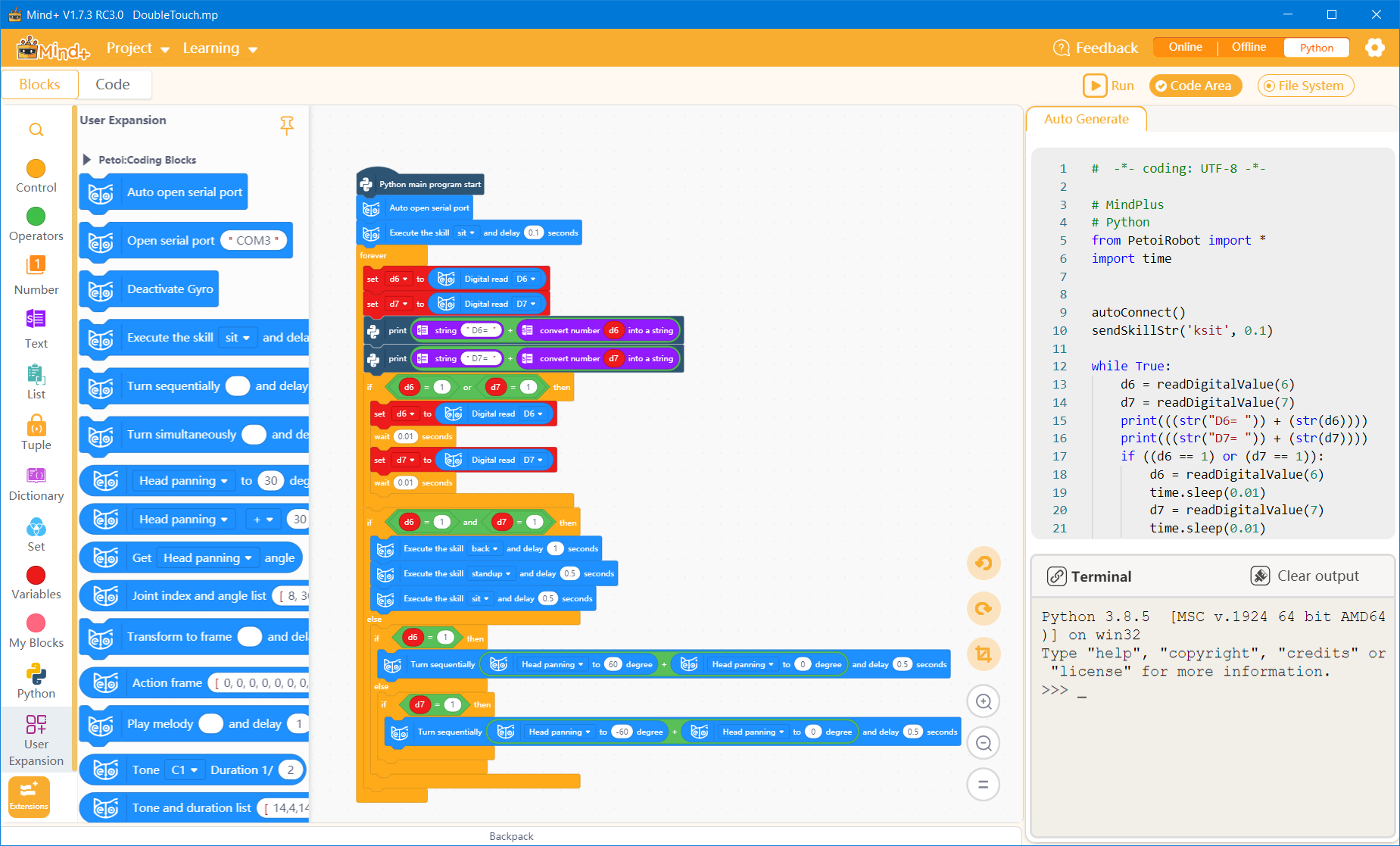
You can [use Python to control any Petoi robot](https://guide.petoi.com/apis/python-api). The scripts can send commands from your computer to your robot via a wired or Bluetooth connection.
### Can your robot (Bittle / Nybble) function on its own? Or does it only work with the commands I give it? Also, can it learn?
It follows your instructions via the mobile app or desktop app. It can also perform random behaviors if you [enable the random mode](https://www.youtube.com/watch?v=nHLkE74Q3k8). Best of all, the program is open source on GitHub, and you can refer to the relevant programming sections in your robot guide to create new skills for your robot.
### When running the Petoi Desktop App in MacOS14.1 (Sonoma), the buttons are not responsive. How to solve this problem?
This is due to the incompatibility of the Python Tk library with MacOS. The temporary solution is that you can press the button and drag the mouse slightly at the same time.
### How to set up Arduino IDE on ChromeOS (for Chromebook)
Please check [this page](/arduino-ide/install-arduino-ide-on-chromebook.md).
### Unable to find the OpenCat library
If you have downloaded and unzipped the OpenCat folder but see the following error:
```
OpenCat:82:10: fatal error: src/OpenCat.h: No such file or directory
#include "src/OpenCat.h"
^~~~~~~~~~~~~~~
compilation terminated.
```
You should rename the unzipped **OpenCat-main** folder to **OpenCat** so that the **OpenCat.ino** matches the root name.
For more information, please refer to:
\
BTW, you can upload [the firmware via the Petoi Desktop App](/desktop-app/firmware-uploader.md).
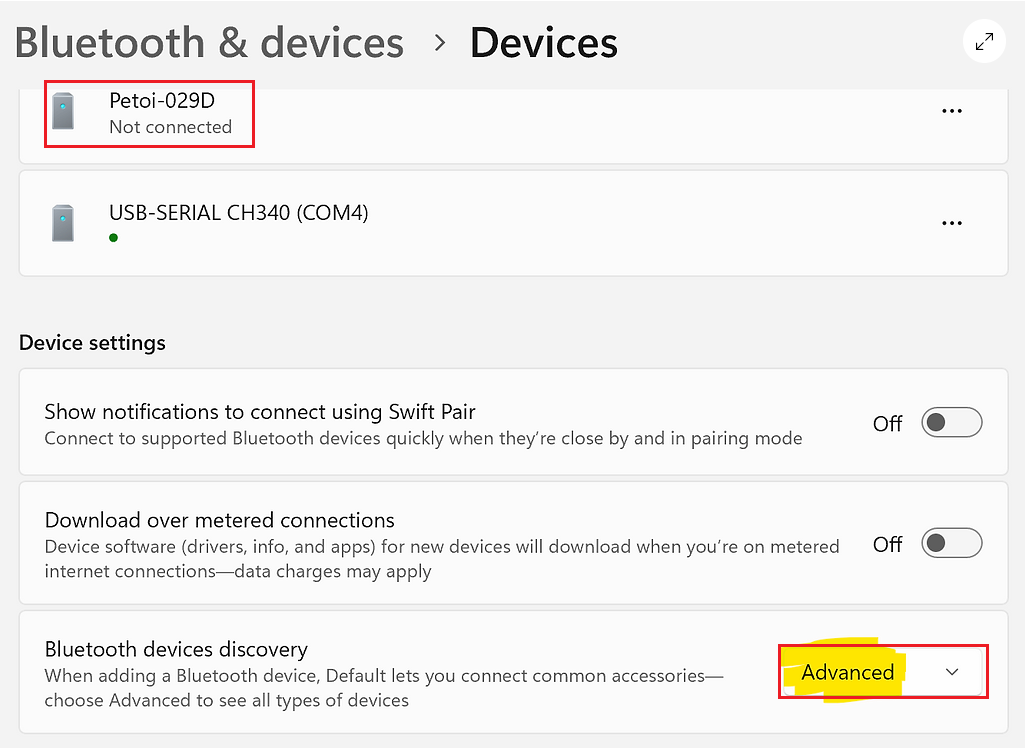
### I'm on Windows 11 and cannot find the robot in the Bluetooth device list
Try to set "Bluetooth devices discovery" to "Advanced" as follows:
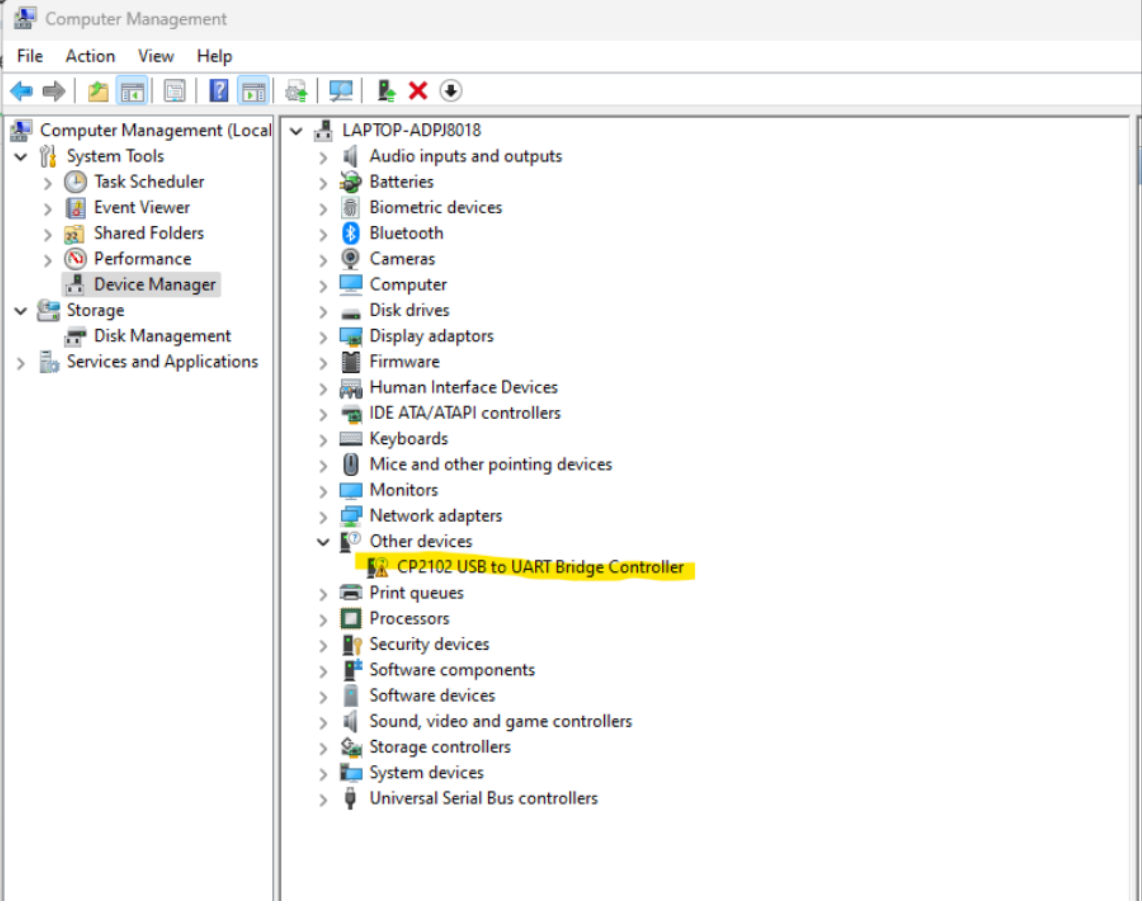
### How to install the CP210x driver on Windows for BiBoard V0?
In the **Device Manager**, if you open the Other devices list, you may see a CP210X device with a triangle exclamation sign. Right-click it to find the "update driver" option, then select the enclosing folder of your [downloaded driver to install](https://guide.petoi.com/technical-support/useful-tools).
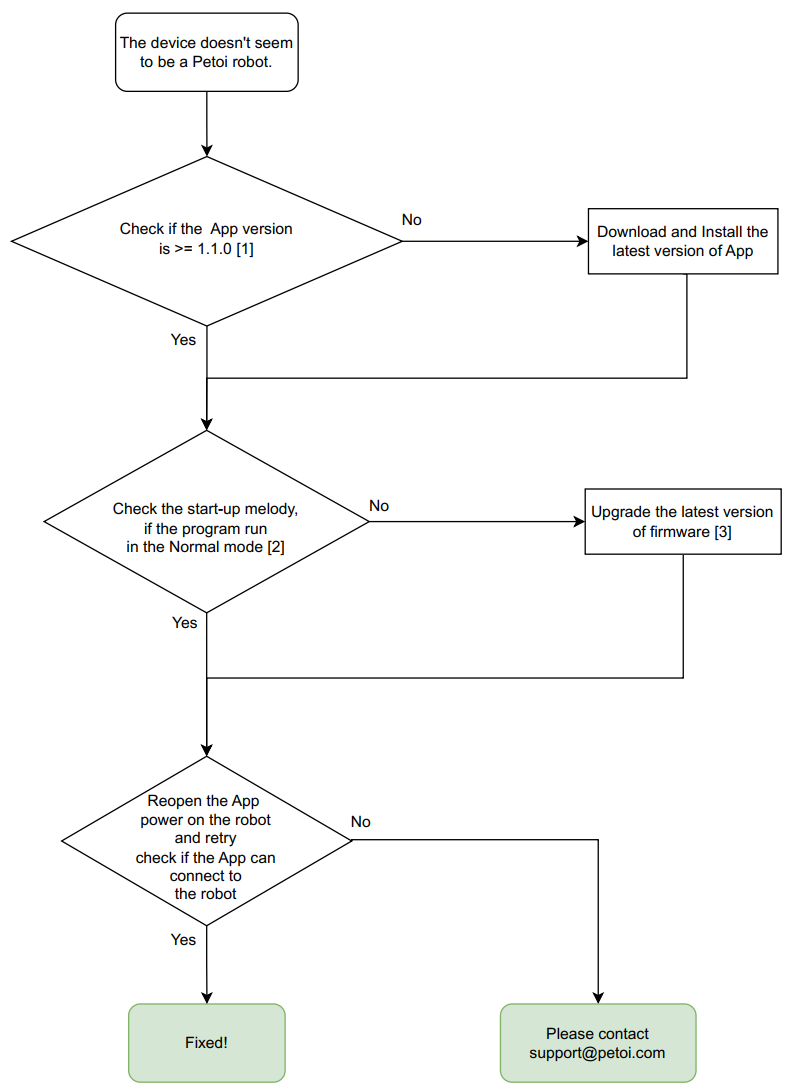
### When I use the mobile App to connect to the robot, it indicates "The device doesn't seem to be a Petoi robot".
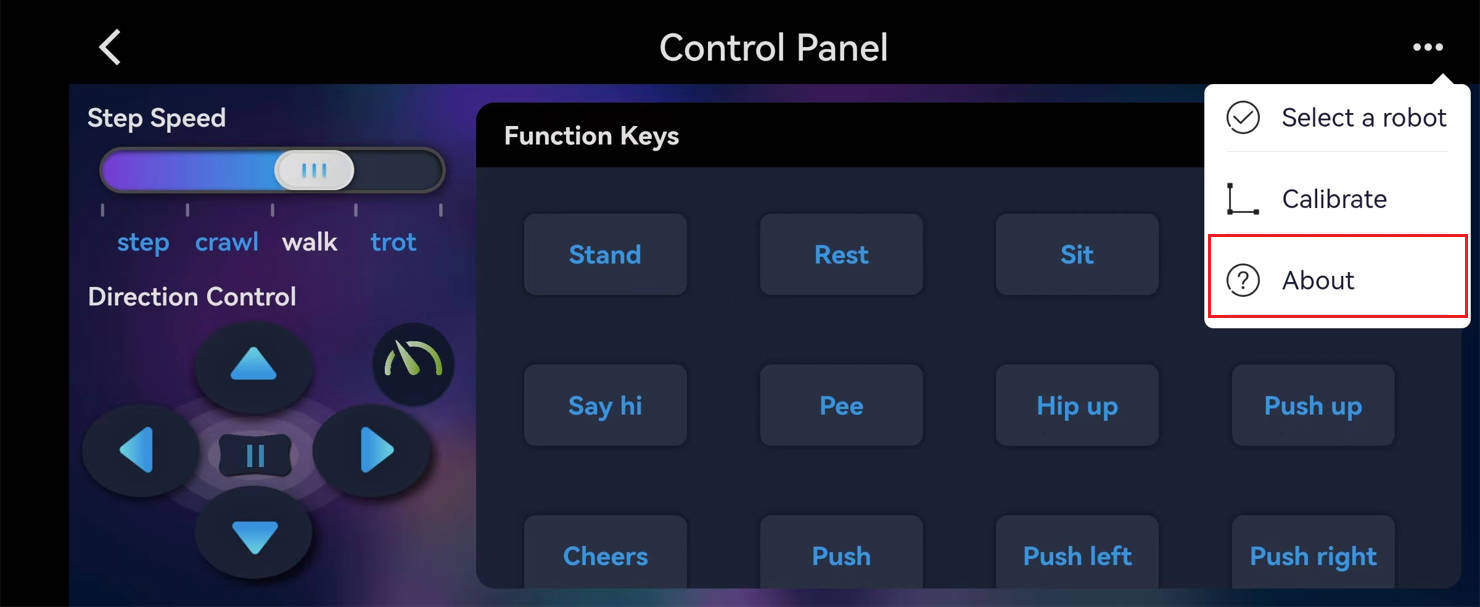
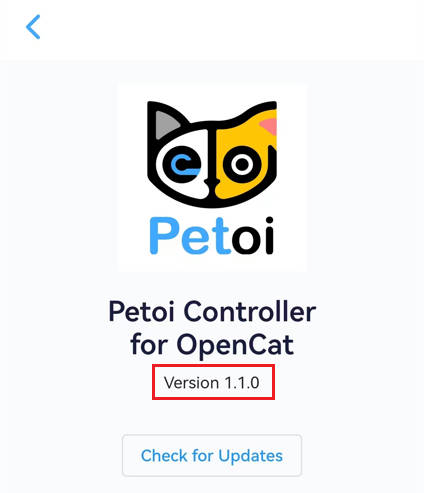
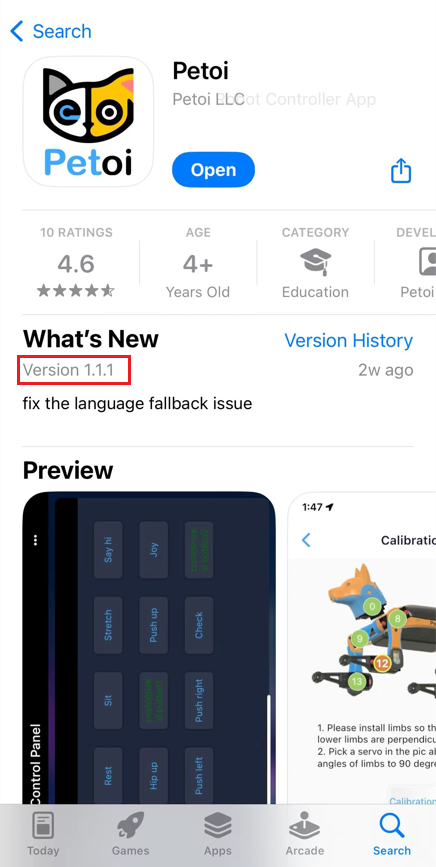
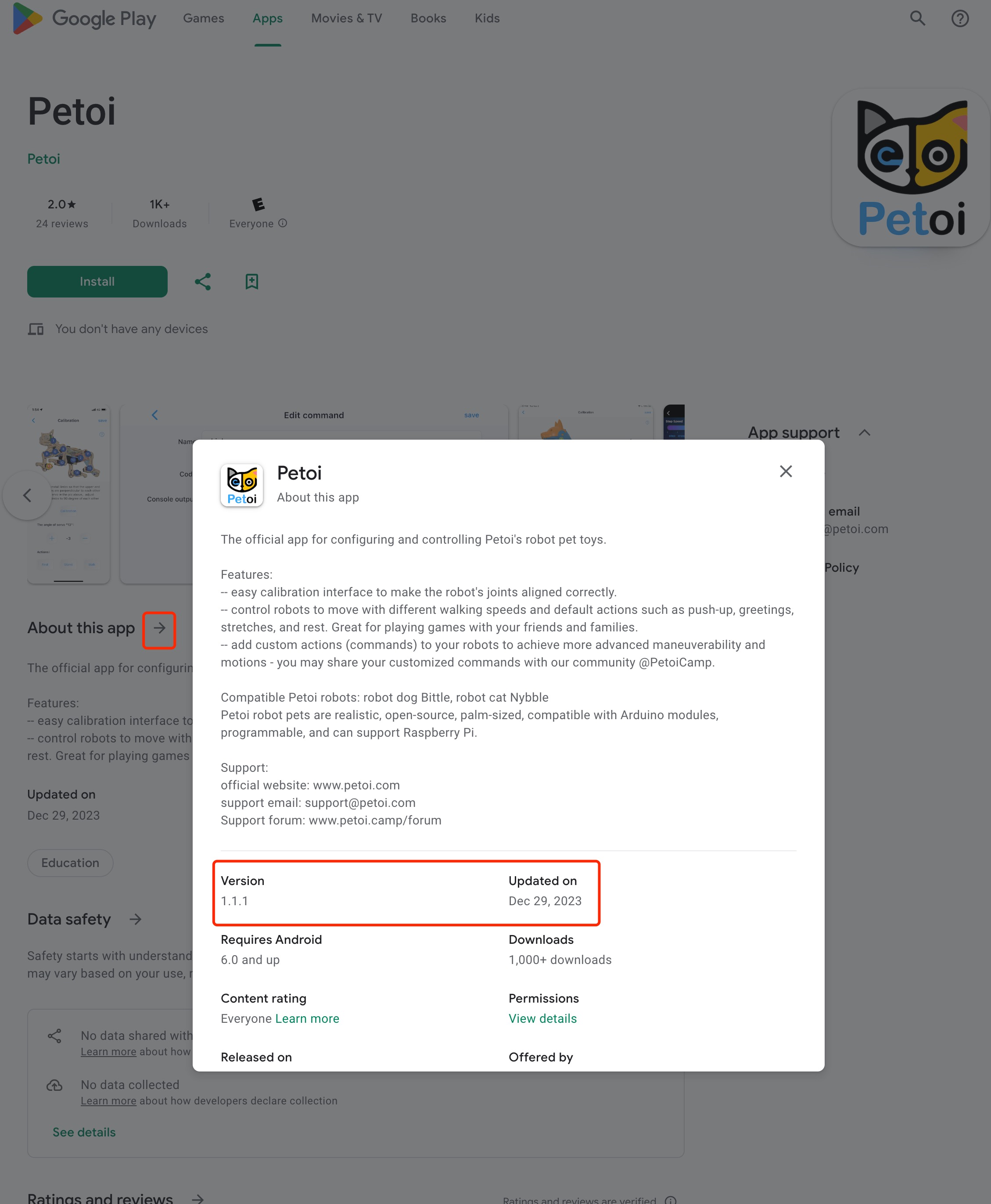
When connecting, the app will send handshake signals to the robot, and the robot should be running the firmware in standard mode to respond correctly. If the app returns a "not Petoi robot" error, it's probably due to a firmware issue. Please follow this debugging process:
\[1]. Please check the version of the app as follows:
* App Store
* Google Play
\[2]. For the startup melody in normal mode, please refer to **00:13** in the video below:
{% embed url="" %}
For how to open the serial monitor and input the serial command, please refer to:
* [BiBoard](https://guide.petoi.com/arduino-ide/upload-sketch-for-biboard#id-2.6-connect-to-biboard-via-usb-type-c-data-cable)
* [NyBoard](https://guide.petoi.com/arduino-ide/upload-sketch-for-nyboard#id-6.-open-the-serial-monitor)
\[3]. You can upgrade the firmware via the [Petoi Desktop App](https://guide.petoi.com/desktop-app/firmware-uploader).
For NyBoard, if the firmware can not be upgraded, please refer to [NyBoard can't upload firmware](https://guide.petoi.com/faq-frequently-asked-questions#nyboard-cant-upload-firmware).
## Hardware
### Does it come with a battery, or do I have to buy a separate battery?
All Petoi robot packages include one rechargeable Li-On battery and a USB data/charging cable. You can use any regular USB (phone) charger for charging. You may get more [spare batteries](https://www.petoi.com/products/li-ion-battery-for-petoi-robot-pets).
### My robot battery isn't charging. What's going on?
The battery charging port is on the battery, NOT on the microcontroller. Please make sure you connect the USB cable to the right port. Please check [the battery guide](/technical-support/battery.md) for more details.
### How can I easily install the springs into the upper legs of Bittle?
### Does it come with a battery, or do I have to buy a separate battery?
All Petoi robot packages include one rechargeable Li-On battery and a USB data/charging cable. You can use any regular USB (phone) charger for charging. You may get more [spare batteries](https://www.petoi.com/products/li-ion-battery-for-petoi-robot-pets).
### My robot battery isn't charging. What's going on?
The battery charging port is on the battery, NOT on the microcontroller. Please make sure you connect the USB to the right port. Please check [the battery guide](/technical-support/battery.md) for more details.
### How can I easily install the springs into the upper legs of Bittle?
Please check out [the forum](https://www.petoi.camp/forum/basic-assembly-and-setup/just-got-my-bittle-kit-can-t-install-springs) post discussing installing springs with various tools. Or you can [request](https://www.petoi.com/pages/contact-us) Bittle upper legs with pre-installed springs
### I can't find the toe covers. What are the toe covers for?
The toe covers are for special experiments that require more friction. They are not required for regular walking and performance. We have removed them from the standard kit recently, and you may order them as optional accessories.
### Some frame structures are broken. Where can I get replacement parts?
You may [contact us](https://www.petoi.com/pages/contact-us). Show the picture of the broken pieces and explain how they broke. You may find the [3D-printable files](https://github.com/PetoiCamp/NonCodeFiles/tree/master/stl) or get a replacement directly from us.
### Bittle's neck is loose and may fall accidentally. How can I reinforce the connection?
Please refer to Bittle's instructions in [Final Assembly.](https://bittle.petoi.com/7-final-assembly#7.1-head)
### Where can I get the bone shown in Bittle's picture?
The little bone is included in the [Intelligent Camera Module](https://guide.petoi.com/extensible-modules/mu-camera) box, and it is not being sold separately. You may download [its 3D-printable file](https://github.com/PetoiCamp/NonCodeFiles/tree/master/stl/Bittle%20%26%20BittleX/Bittle_bone) to print one.
### Does Raspberry Pi require any additional components?
You can solder the 2x5 socket on the NyBoard and then mount the Raspberry Pi on the NyBoard.
Read more at:
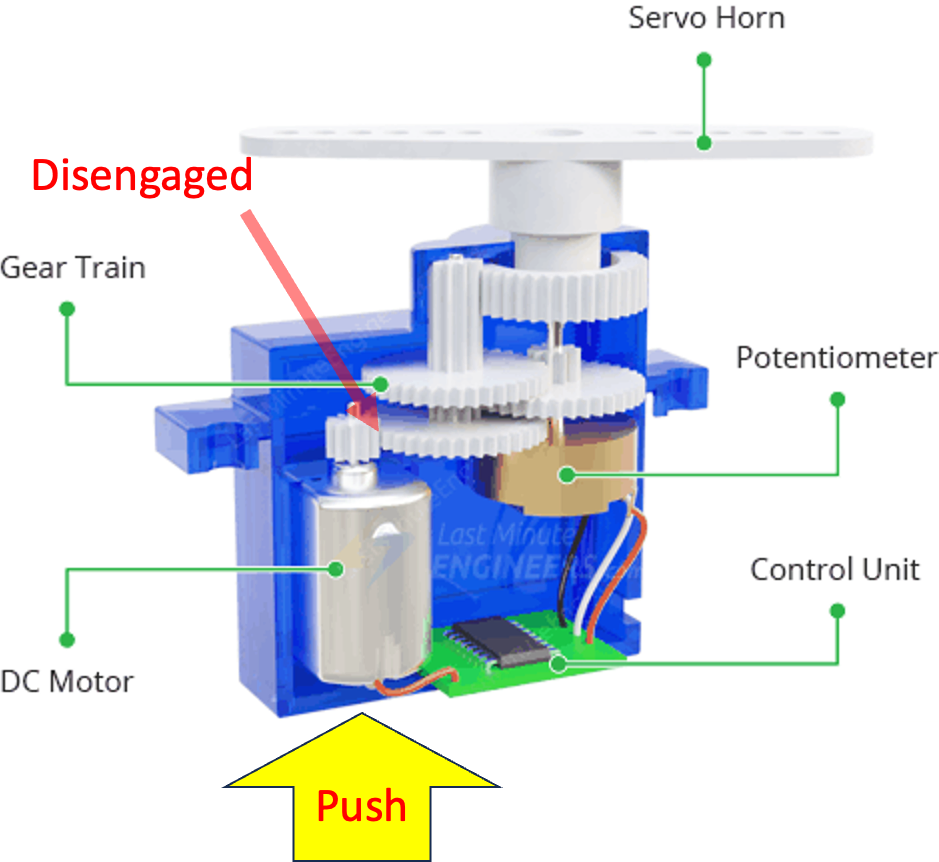
### Quick fix of the servo motor engagement
In some cases, the motor's output gear may disengage from the gear. It will result in an abnormal buzzing sound inside the servo. You can take off the bottom of the servo and push the motor inward very hard until you hear a clicking sound.
### The camera module can't work after being connected to the BiBoard extension hat.
Please refer to the FAQ section on [the MU camera](/extensible-modules/mu-camera.md).
### The serial port can't be found when I use a USB type-C data cable to connect the BiBoard to the computer.
Turn off the battery's power to see if the serial port can appear. Please refer to [Connect to BiBoard via USB type-C data cable](https://guide.petoi.com/arduino-ide/upload-sketch-for-biboard#id-2.6-connect-to-biboard-via-usb-type-c-data-cable).
## Resources and links
### Driver for CH340 USB uploader
* Mac:
* Windows:
### Can I use block-based coding with any Petoi robot? Do I need to purchase add-on components/modules?
You can use [Petoi Coding blocks](https://guide.petoi.com/block-based-programming/petoi-coding-blocks) to do Scratch-like block-based programming with all of Petoi robots.
There's nothing else to purchase.
---
# Agent Instructions
This documentation is published with GitBook. GitBook is the documentation platform designed so that both humans and AI agents can read, navigate, and reason over technical content effectively. Learn more at gitbook.com.
## Querying This Documentation
If you need additional information that is not directly available in this page, you can query the documentation dynamically by asking a question.
Perform an HTTP GET request on the current page URL with the `ask` query parameter, and the optional `goal` query parameter:
```
GET https://guide.petoi.com/faq-frequently-asked-questions.md?ask=&goal=
```
`ask` is the immediate question: it should be specific, self-contained, and written in natural language.
`goal` is optional and describes the broader end goal you are ultimately trying to accomplish on behalf of the user. GitBook uses it to tailor the answer towards what is most useful for that goal.
The response will contain a direct answer to the question and relevant excerpts and sources from the documentation.
Use this mechanism when the answer is not explicitly present in the current page, you need clarification or additional context, or you want to retrieve related documentation sections.