> For the complete documentation index, see [llms.txt](https://guide.petoi.com/llms.txt). Markdown versions of documentation pages are available by appending `.md` to page URLs; this page is available as [Markdown](https://guide.petoi.com/desktop-app/joint-calibrator.md).
# Joint Calibrator
Robots can be precisely calibrated using the Petoi Desktop App.
## \*\* Download the latest version of the [Petoi Desktop APP](https://github.com/PetoiCamp/DesktopAppRelease/releases). \*\*
For detailed installation tutorials and usage instructions, please refer to [Desktop APP Introduction](https://guide.petoi.com/desktop-app/introduction).
## Prepare for calibration
Please follow the instructions in the subpages to prepare according to the robot's mainboard.
{% hint style="info" %}
Only software version 2.0 can calibrate the joints via this App.
{% endhint %}
{% hint style="info" %}
For **Bittle X+Arm**, you must install the short wire servo in the servo slot on the robotic arm. For more information, please refer to [the instructions](https://guide.petoi.com/desktop-app/joint-calibrator/bittle-x+arm#prepare-for-calibration) on the subpage.
{% endhint %}
## The rationale for calibration
### Understand the zero state and the coordinate system
After the robot [enters the calibration state](#enter-the-calibration-state), with all servos rotated to their zero angles, attach the head, tail, and legs prepared in the previous section to the body. They are generally perpendicular to their linked body frames.
Please refer to the subpage for the calibration pose (Calibration State) according to the product type.
Rotating the limbs counterclockwise from their zero states will be positive (the same as in polar coordinates). Viewed from the left side of the robot's body, the counter-clockwise rotation of the joint is defined as the positive direction.
{% hint style="info" %}
The only exception is the head tilt angle for Nybble. It’s more natural to say head up, while it’s the result of rotating clockwise.
{% endhint %}
{% hint style="info" %}
However, from the right side of the robot's body, the rotation directions' positive and negative are just opposite.
{% endhint %}
### Discrete angular intervals
If we look closer at the servo shaft, we can see it has a certain number of teeth. That’s for attaching the servo arms and avoiding sliding in the rotational direction. In our servo sample, the gears divide 360 degrees into 25 sectors, each taking **14.4** degrees(offset of -7.2\~7.2 degrees). That means we cannot always get a perfect perpendicular installation.

## Calibration process
### Enter the calibration state
{% hint style="info" %}
Connect the battery to the mainboard, then long-press the battery button for more than 3 seconds to power on the robot.
{% endhint %}
After a battery powers on the robot, there are two methods to enter the calibration mode:
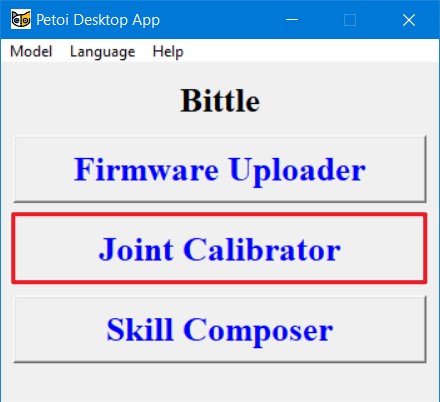
* It will automatically enter calibration mode when you click the **Joint Calibrator** button.
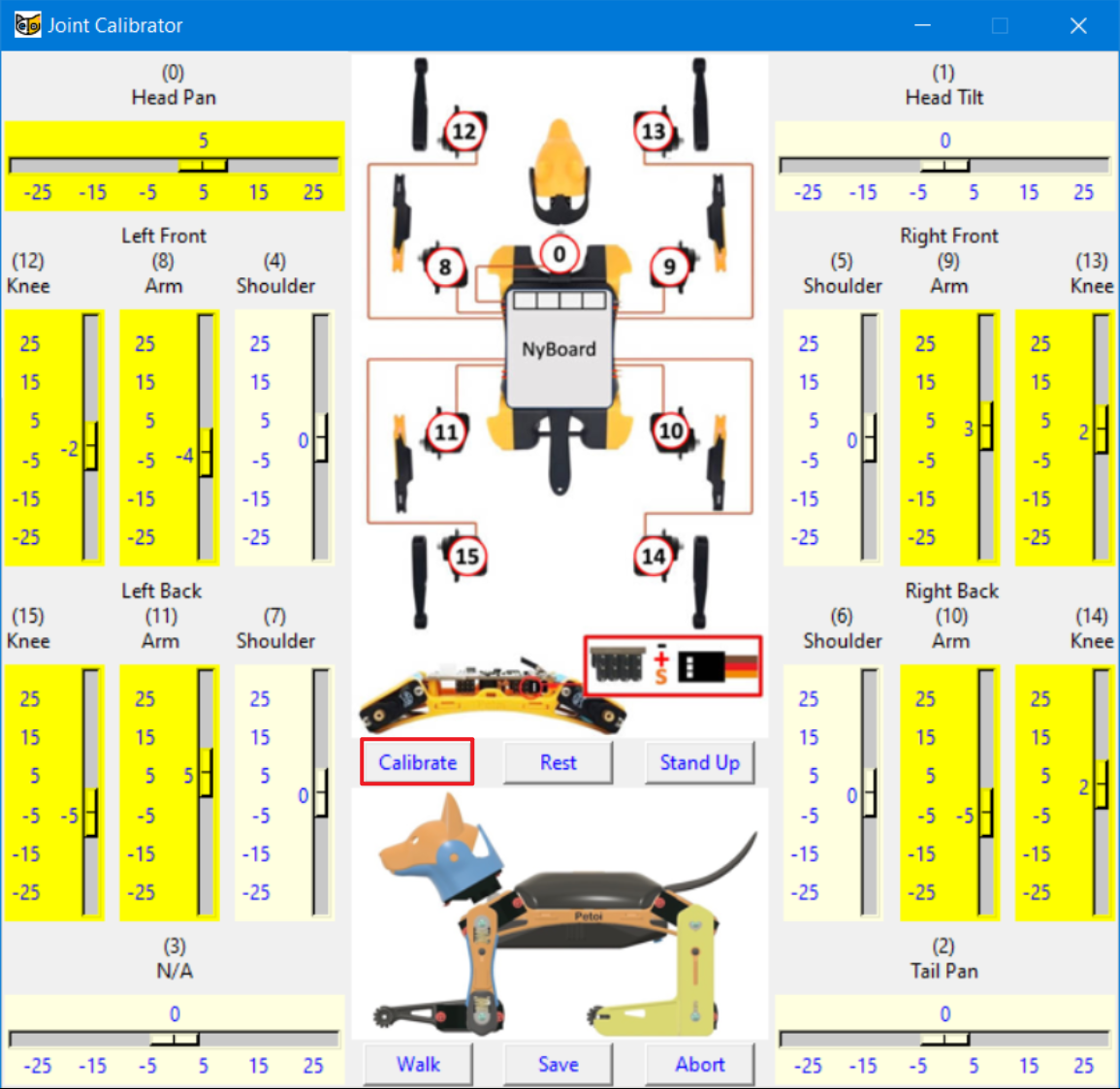
* Click the **Calibrate** button in the **Joint Calibrator** interface.
Take Bittle for example:
{% hint style="info" %}
If you are building the robot from a kit, install the servo-related components according to the picture (calibration state) and try to ensure that they are perpendicular to each other (the upper leg is perpendicular to the torso, and the lower leg is perpendicular to the upper leg). Please refer to the related chapter in the user manual for the details:
* Nybble
* [Bittle](https://bittle.petoi.com/6-calibration)
{% endhint %}
{% hint style="warning" %}
Note: Insert the servo-related components directly into the servo output shaft; do not turn the output shaft during this process.
{% endhint %}
### Installing and Fine-tuning
The joint calibration interface of different products is shown in the following subpages.
There are two kinds of kit: the **construction** kit and the **pre-assembled** kit.
* For the **construction** kit, you must install the components (such as the head, legs, and tail) after the robot enters the calibration state. For more details, please follow the suppage instructions.
* The **pre-assembled** kit already has the components adequately installed. You can do the joint calibration for fine-tuning.
The included L-shaped tool can be used as a reference during calibration. For more details, please follow the instructions on the subpages.
### Validation and Save data
You can switch between "**Rest**", "**Stand up**" and "**Walk**" to test the calibration effect.
If you want to continue calibrating, please click the **Calibration** button, and the robot will be in the calibration state again (all servos will move to the calibration position immediately).
Take Bittle for example:

{% hint style="warning" %}
Note: You may need a second round of calibrations to achieve optimal results.
{% endhint %}
After calibration, remember to click the "**Save**" button to save the calibration offset. Otherwise, click the "**Abort**" button to abandon the calibration data. You can save the calibration in the middle in case your connection is interrupted.
{% hint style="info" %}
When you close this window, there is a message box shown below:

To save the calibration data, please click the "**Yes**" button; otherwise, click the "**No**" button. Click the "**Cancel**" button to cancel or quit.
{% endhint %}
### Install the screws for the construction kit
After completing the joint calibration, install the center screws to fix the components and servo gears.
---
# Agent Instructions
This documentation is published with GitBook. GitBook is the documentation platform designed so that both humans and AI agents can read, navigate, and reason over technical content effectively. Learn more at gitbook.com.
## Querying This Documentation
If you need additional information that is not directly available in this page, you can query the documentation dynamically by asking a question.
Perform an HTTP GET request on the current page URL with the `ask` query parameter, and the optional `goal` query parameter:
```
GET https://guide.petoi.com/desktop-app/joint-calibrator.md?ask=&goal=
```
`ask` is the immediate question: it should be specific, self-contained, and written in natural language.
`goal` is optional and describes the broader end goal you are ultimately trying to accomplish on behalf of the user. GitBook uses it to tailor the answer towards what is most useful for that goal.
The response will contain a direct answer to the question and relevant excerpts and sources from the documentation.
Use this mechanism when the answer is not explicitly present in the current page, you need clarification or additional context, or you want to retrieve related documentation sections.