> For the complete documentation index, see [llms.txt](https://guide.petoi.com/llms.txt). Markdown versions of documentation pages are available by appending `.md` to page URLs; this page is available as [Markdown](https://guide.petoi.com/petoi-web-coding-blocks/upload-firmware-using-petoi-desktop-app.md).
# Upload Firmware Using Petoi Desktop APP
The manual for Beginner.
## \*\* Download the latest version of the [Petoi Desktop APP](https://github.com/PetoiCamp/DesktopAppRelease/releases). \*\*
For detailed installation tutorials and usage instructions, please refer to [Desktop APP Introduction](https://guide.petoi.com/desktop-app/introduction).
## Connect the mainboard to the computer
Currently, Petoi Web Coding Blocks only support Petoi robots equipped with the BiBoard.
You can connect the computer to the mainboard using a USB cable, following the instructions on the pages ( [BiBoard V0](/desktop-app/firmware-uploader/biboard-v0.md) / [BiBoard V1](/desktop-app/firmware-uploader/biboard-v1.md)), which are specific to the robot's mainboard model.
{% hint style="info" %}
For **BiBoard**, there are [BiBoard V0\_\*](https://guide.petoi.com/biboard/biboard-v0) (which requires an extension hat to use the voice command module and Grove sockets) and [BiBoard V1\_0](https://guide.petoi.com/biboard/biboard-v1-guide).
{% endhint %}
## Upload the firmware using the Petoi Desktop app
### Open the PetoiDesktopApp
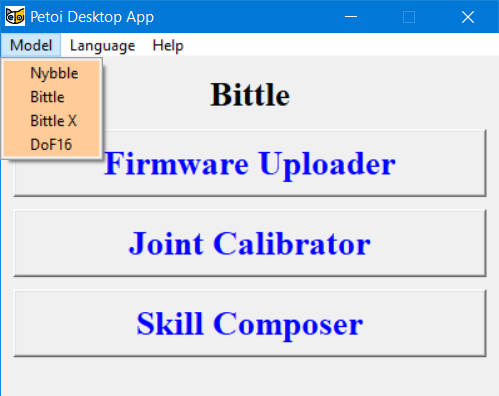
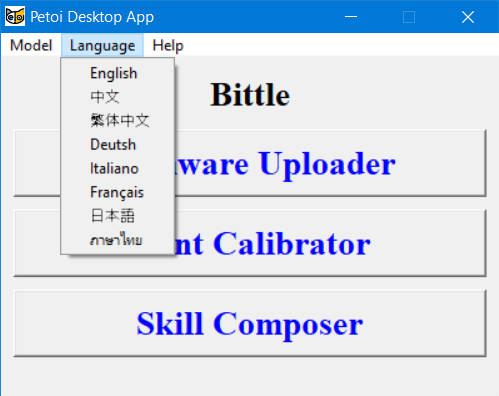
**After** properly connecting the mainboard with the computer via a USB data cable, open the PetoiDesktopApp (for Windows: UI.exe / for Mac: Petoi Desktop App), and select your **Model** and **Language**.
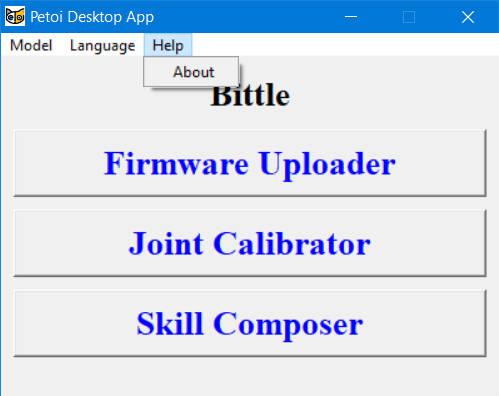
#### Menu bar in Petoi Desktop APP
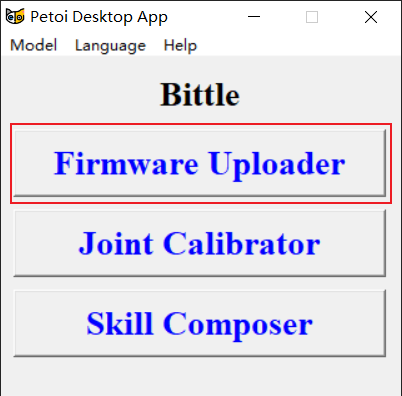
### Click the Firmware Uploader button
### Auto Detect the Serial Port
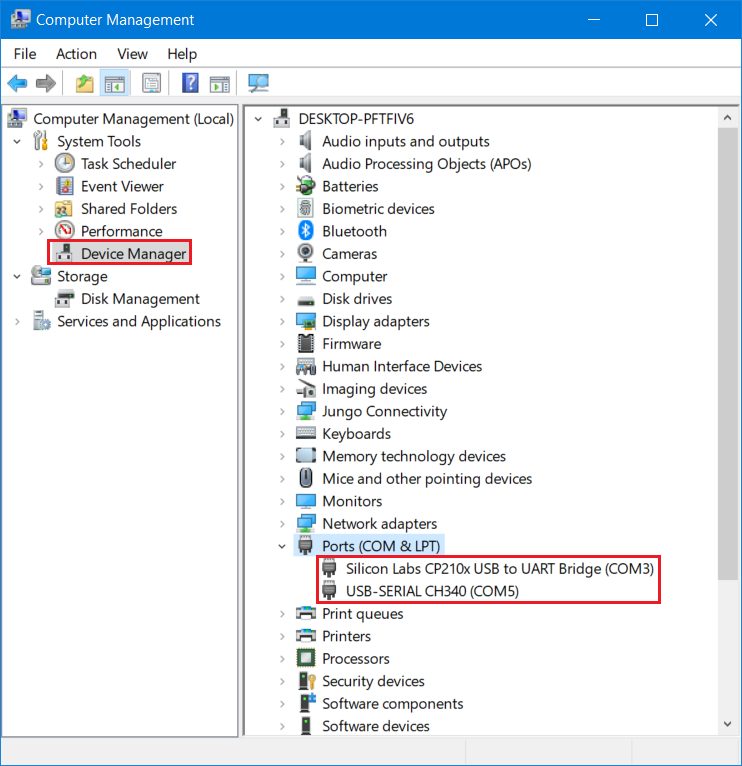
If there is **no** serial port or **more than one** serial port is detected by the desktop app:
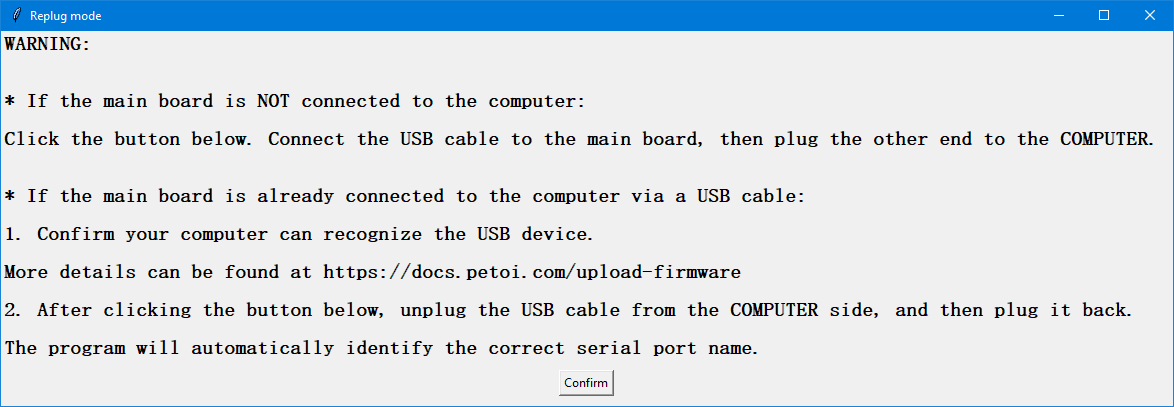
After clicking the **Firmware Uploader** button, there will be a message box prompt as follows:
Please follow the prompts in the message box. \
After clicking the **Confirm** button, If you complete the prompts within 10 seconds, the desktop app will automatically identify the serial port name connecting the robot to the computer.\
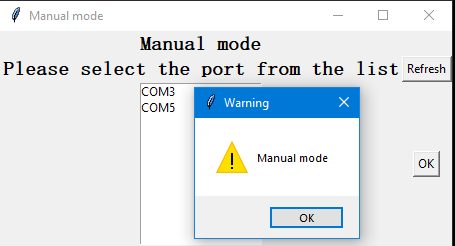
If you complete the operation of unplugging and plugging the USB interface on the computer for more than 10 seconds, the desktop application will enter the manual selection of the serial port name mode:
Click the **OK** button in the Warning message box first, then you can refresh the serial port list or select one of them (e.g. **COM3**) and click the **OK** button in the **Manual mode** window to open the Firmware Uploader interface as follows:
Once the Firmware Uploader interface is opened, you can also unplug and replug the USB cable from the COMPUTER side. The desktop app will automatically identify the serial port name used to connect the robot to the computer.
If you unplug the **COM5** and replug it on the computer side, it will be discovered by the desktop app as follows:
### Select the correct options to upload the latest firmware.
{% hint style="warning" %}
There's no correlation between the board (hardware) version and the code (software) version.
{% endhint %}
Please follow the instructions on the subsequent sub-pages ([BiBoard V0](/desktop-app/firmware-uploader/biboard-v0.md#uploading-options)), depending on the type of your robot's mainboard.
### Finish uploading the firmware
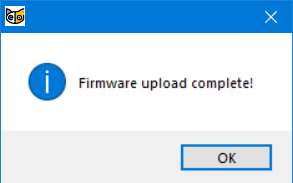
After the upload, the status bar will update the corresponding result, such as the success or failure of firmware uploading. If the upload is successful, a message window titled "Firmware upload complete!" will pop up.
{% hint style="info" %}
Note:
After uploading the firmware, if the BiBoard V1 is not connected to the battery and powered on, you will hear a series of descending melodies, indicating that the battery is low or disconnected. You need to connect the battery and turn it on.
{% endhint %}
### Check the log
From the desktop app version **1.2.7**, the log information will be output in the console box at the bottom of the interface:
You can directly click the **Copy** button to copy all the log information, or you can first select specific key information in the console output box with your mouse, then click the **Copy** button to copy only that portion of the log information, and then paste this information into an email and send it to support.petoi.com for assistance.
{% hint style="info" %}
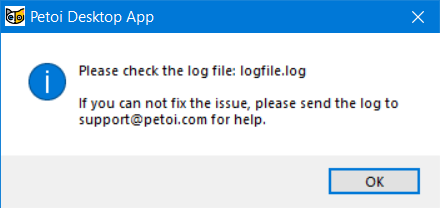
For the old version of the desktop app, if the upload fails, the following message box will pop up:
the log file is located at:
* For Windows: The log file is in the same directory as **UI.exe**

* For macOS: You can check the log file as follows:

When you contact our ****, please attach the log file to your email.
{% endhint %}
---
# Agent Instructions
This documentation is published with GitBook. GitBook is the documentation platform designed so that both humans and AI agents can read, navigate, and reason over technical content effectively. Learn more at gitbook.com.
## Querying This Documentation
If you need additional information that is not directly available in this page, you can query the documentation dynamically by asking a question.
Perform an HTTP GET request on the current page URL with the `ask` query parameter, and the optional `goal` query parameter:
```
GET https://guide.petoi.com/petoi-web-coding-blocks/upload-firmware-using-petoi-desktop-app.md?ask=&goal=
```
`ask` is the immediate question: it should be specific, self-contained, and written in natural language.
`goal` is optional and describes the broader end goal you are ultimately trying to accomplish on behalf of the user. GitBook uses it to tailor the answer towards what is most useful for that goal.
The response will contain a direct answer to the question and relevant excerpts and sources from the documentation.
Use this mechanism when the answer is not explicitly present in the current page, you need clarification or additional context, or you want to retrieve related documentation sections.



 the log file is located at:
* For Windows: The log file is in the same directory as **UI.exe**

* For macOS: You can check the log file as follows:

When you contact our **
the log file is located at:
* For Windows: The log file is in the same directory as **UI.exe**

* For macOS: You can check the log file as follows:

When you contact our **