> For the complete documentation index, see [llms.txt](https://guide.petoi.com/llms.txt). Markdown versions of documentation pages are available by appending `.md` to page URLs; this page is available as [Markdown](https://guide.petoi.com/extensible-modules/ultrasonic-sensor.md).
# Ultrasonic Sensor
## Function introduction
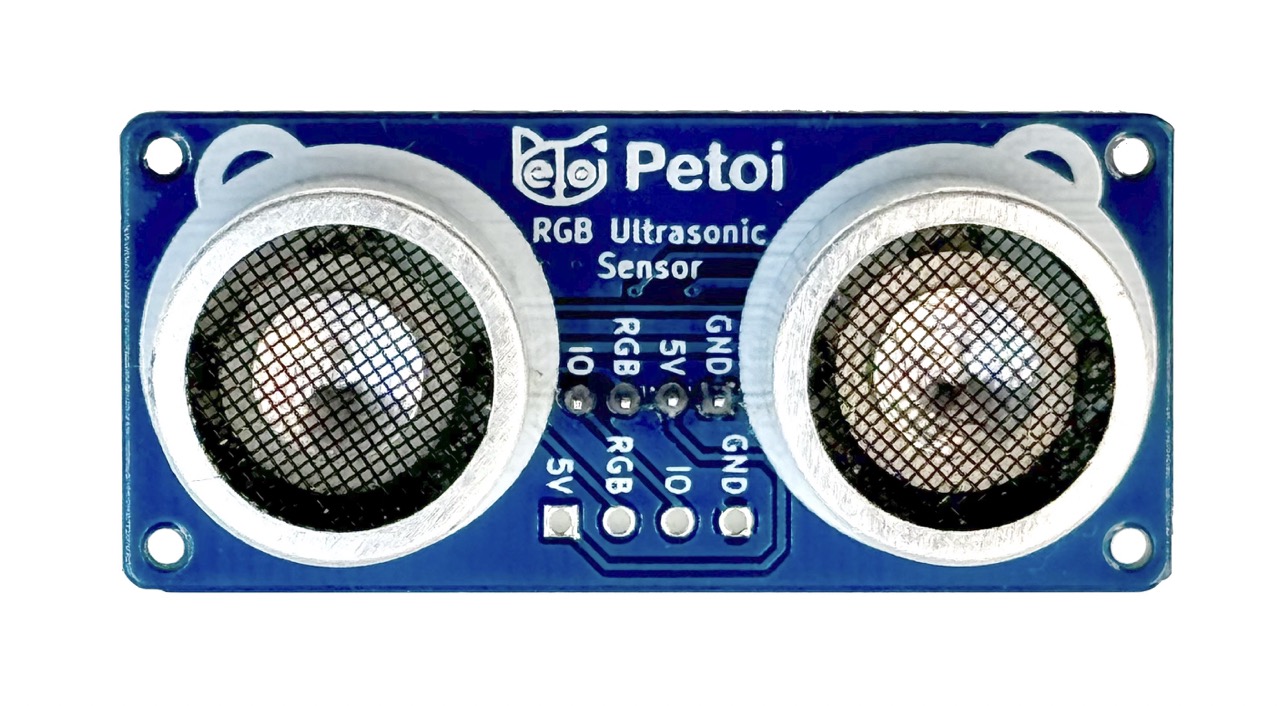
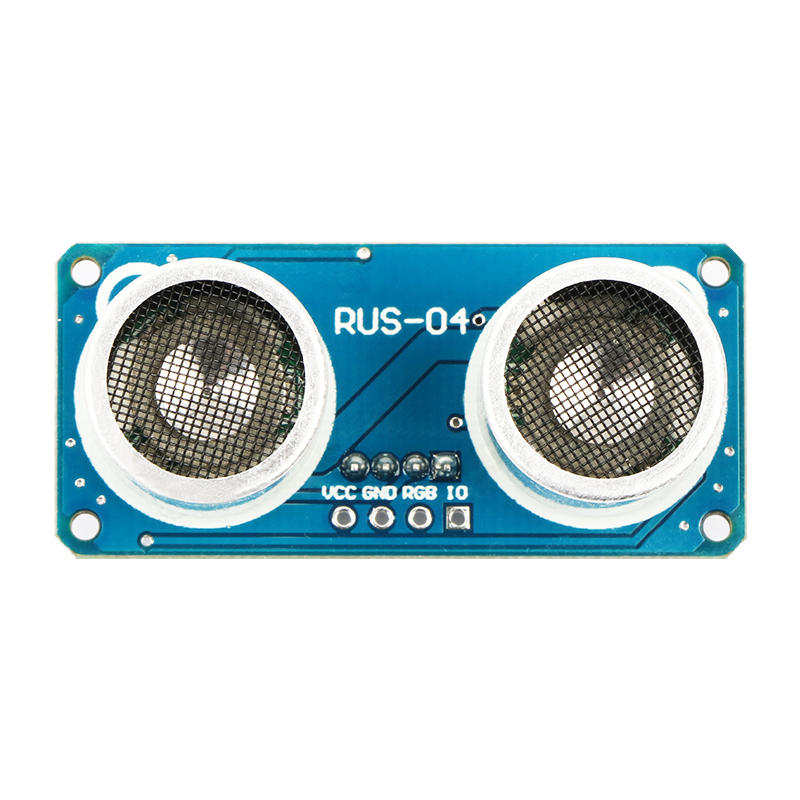
Petoi RGB Ultrasonic Sensor is a new module that integrates RGB LED and ultrasonic ranging. Only one GPIO is needed to operate the ultrasonic transceiver. While the ultrasonic probe measures the distance, the other GPIO pin can drive RGB LEDs with various light effects.
{% hint style="info" %}
The previous one:
{% endhint %}
## BiBoard
### Hardware setup
#### BiBoard V1 for Bittle X V2 / Bittle X+Arm / Nybble Q
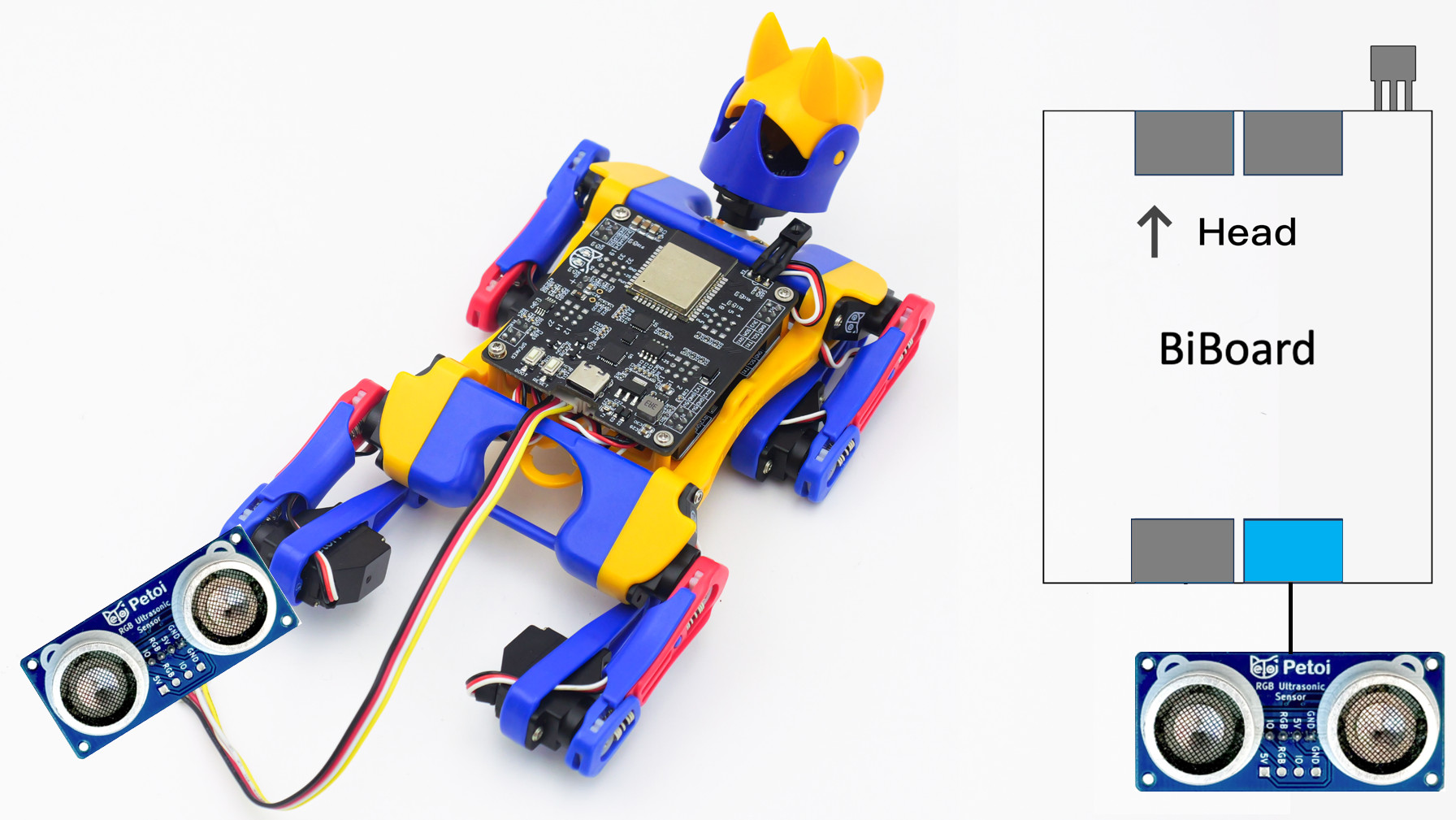
The sensor should connect to the first Grove socket from the top.
#### BiBoard V0 for Bittle X
Take Bittle X for example, connecting to the BiBoard with wire as shown in the following picture:
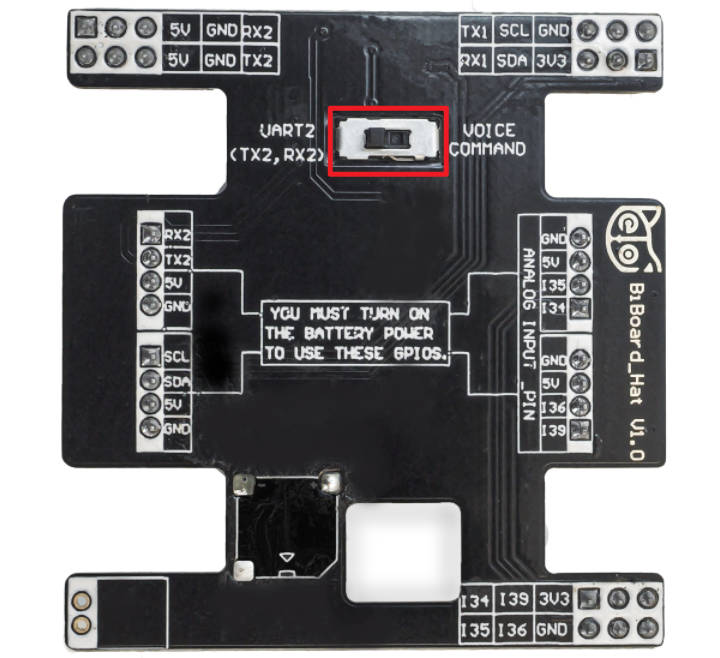
The dial switch on the bottom of the BiBoard extension hat is dialed to ***UART2*** .
### Software setup
There are two methods to upload the firmware :
* Using the Petoi Desktop App
* Using the Arduino IDE
#### Petoi Desktop App
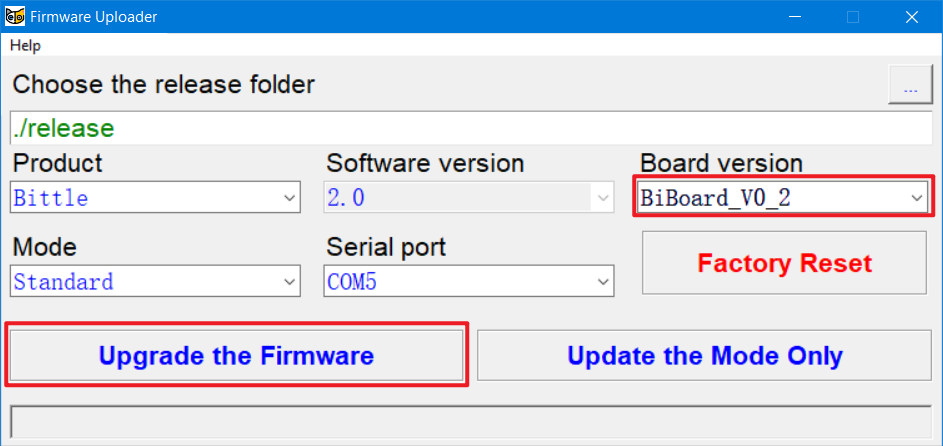
* You can use the [Firmware Uploader](https://guide.petoi.com/desktop-app/firmware-uploader#select-the-correct-options-to-upload-the-latest-firmware) within the Petoi Desktop App.\
Please select the correct ***Product*** type, ***Borard version***, and ***Serial port***. The mode should be **Standard**, so press the **Upgrade the Firmware** button. for example, Bittle, BiBoard\_V0\_2, COM5 as follows:
#### Arduino IDE
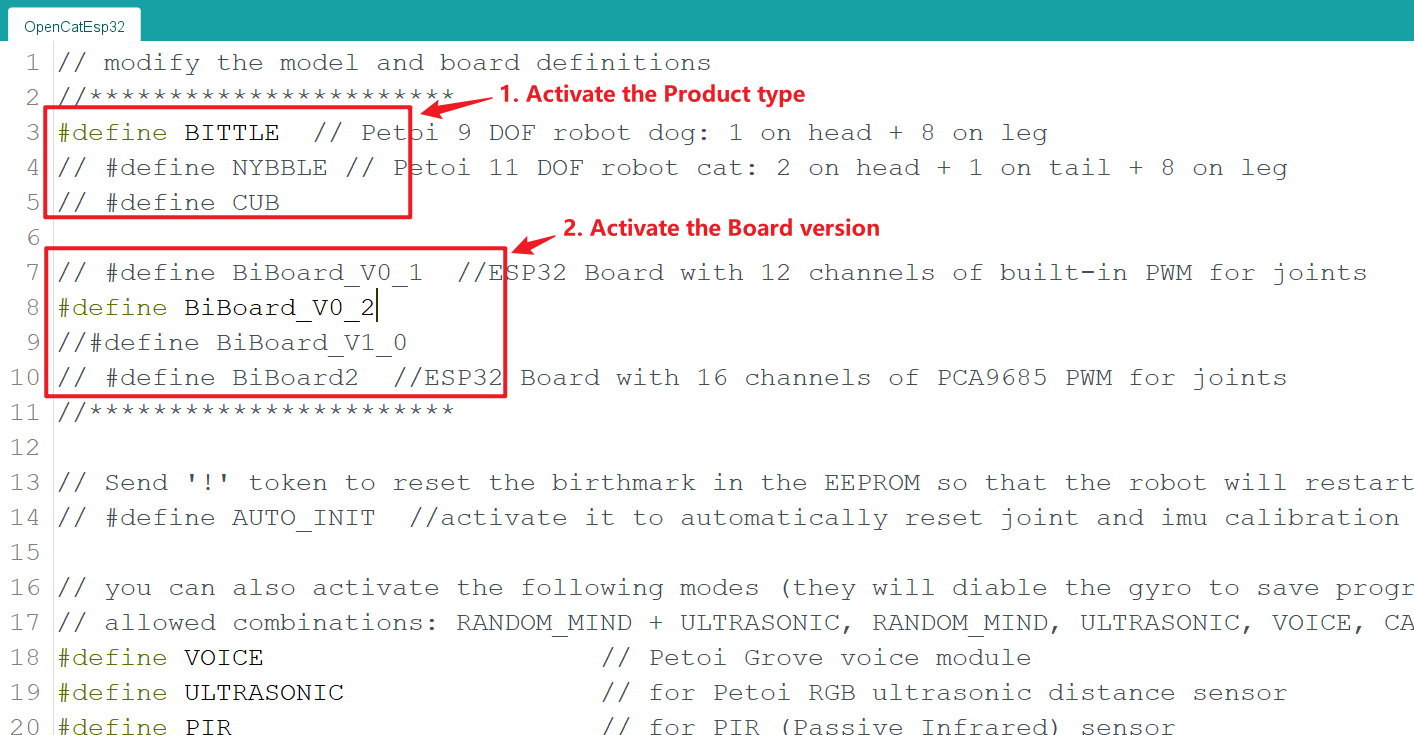
* You can use [Arduino IDE](https://www.arduino.cc/en/software) to [upload the sketch](https://guide.petoi.com/arduino-ide/upload-sketch-for-biboard#id-2.-set-up-biboard)(***OpenCatEsp32.ino***). \
Use the latest OpenCatESP32 code to finish the setup. For example, to modify the code for ***Bittle*** as shown below:
After uploading, there are two methods to ***activate/deactivate*** the ultrasonic mode:
* Serial Monitor
* [Open the serial monitor](/arduino-ide/serial-monitor.md#biboard) and use the serial command "***XU***" to activate the ultrasonic mode.
* Open the serial monitor and use the serial command "***Xu***" to deactivate the ultrasonic mode.
* Mobile App
* Create [a mobile app command](https://docs.petoi.com/mobile-app/controller#create-a-single-command) called "**Activate ultrasonic**" and use the code: *`X85`*
* Create a mobile app command called "**Deactivate ultrasonic**" and use the code: *`X117`*
#### Mind+ demo code
## NyBoard for Bittle / Nybble
### Hardware setup
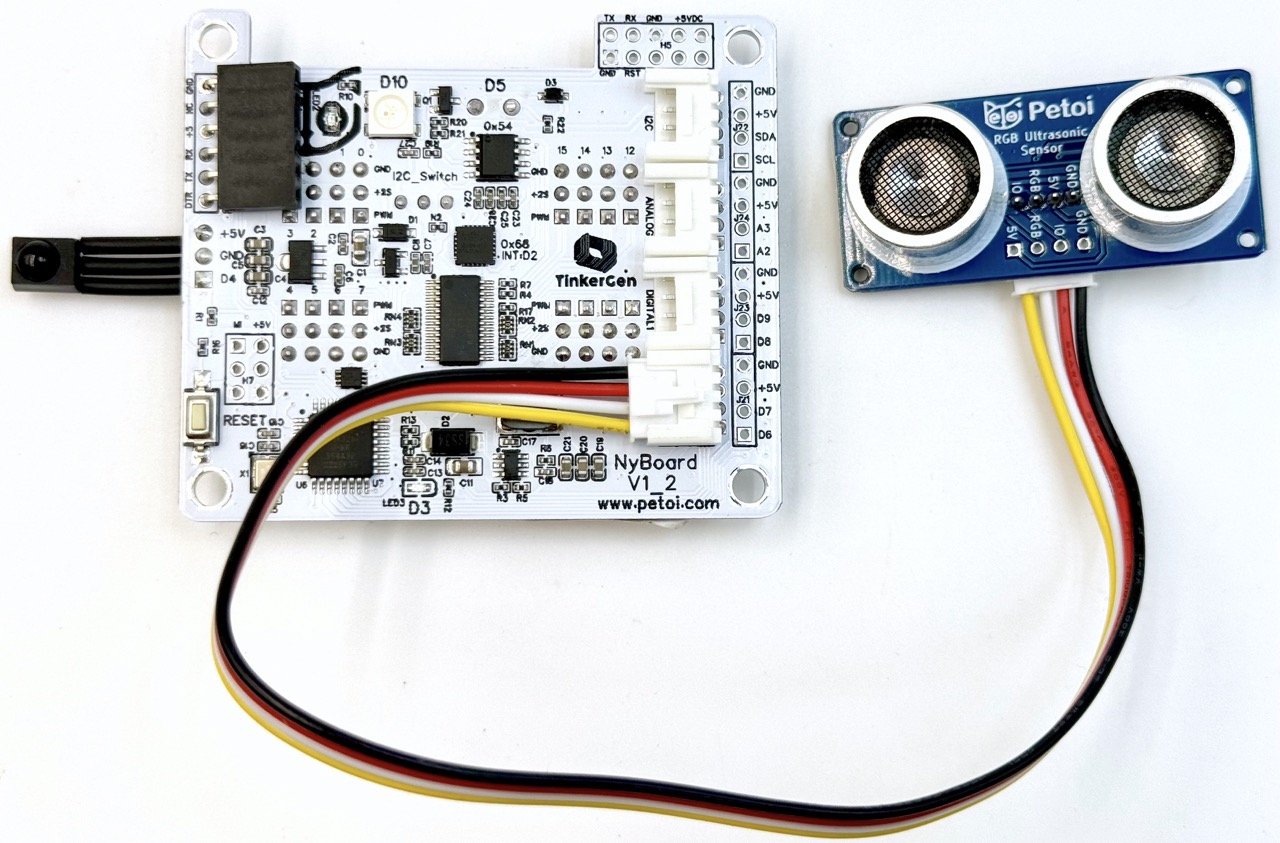
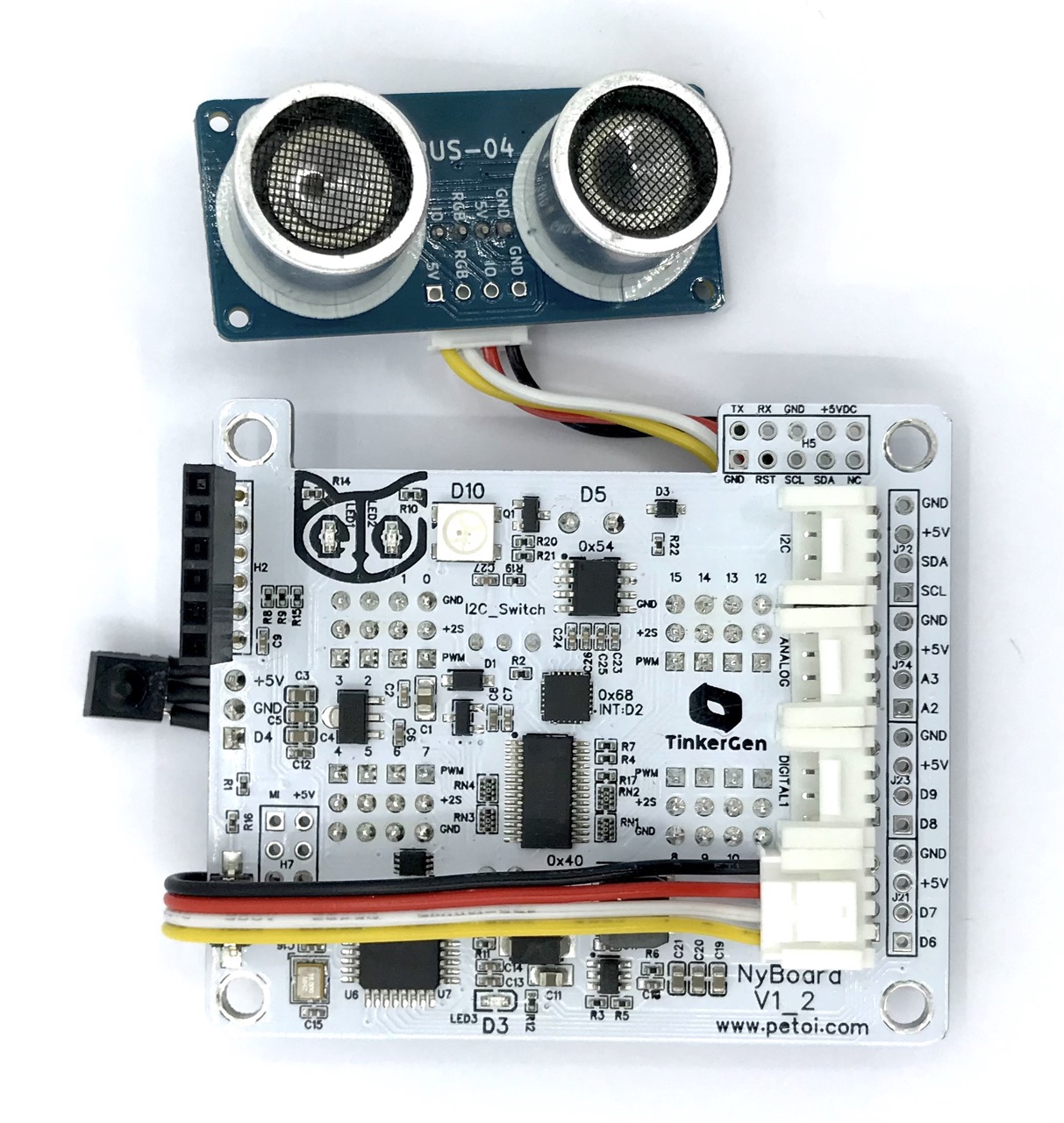
Connecting to the NyBoard with wire as shown in the following picture:
{% hint style="info" %}
The previous one:
{% endhint %}
Attach the ultrasonic sensor to [Nybble's eye](https://youtu.be/g7_ODr_3DTc).
{% embed url="" %}
### Software setup
#### Petoi Desktop App
* You can use the [Firmware Uploader](https://guide.petoi.com/desktop-app/firmware-uploader#select-the-correct-options-to-upload-the-latest-firmware) within the Petoi Desktop App.\
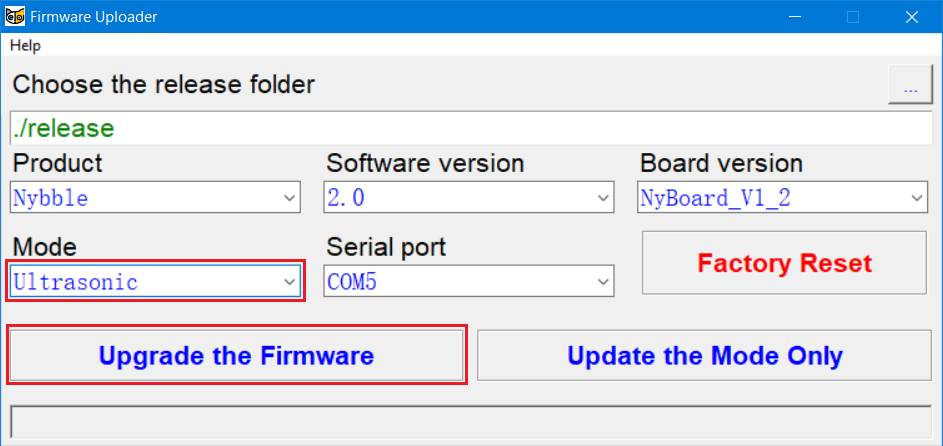
Please select the correct ***Product*** type, ***Borard version***, and ***Serial port***. The mode should be **Ultrasonic**, so press the **Upgrade the Firmware** button. for example, Nybble, NyBoard\_V1\_2, COM5 as follows:
#### Arduino IDE
* You can use [Arduino IDE](https://www.arduino.cc/en/software) to upload and modify the source code.
Use the latest OpenCat code to finish the setup. For example, to modify the code for ***Nybble*** as shown below:

If you have already uploaded the latest OpenCat code to make Nybble walk, you only need to uncomment the **`#define ULTRASONIC`** at the beginning of OpenCat.ino, then upload the code.
If you are unsure, you need to finish the [upload process for the standard mode](https://guide.petoi.com/arduino-ide/upload-sketch-for-nyboard) (Step 1 to Step 10) to ensure everything is configured correctly, then upload the code in the Ultrasonic mode.
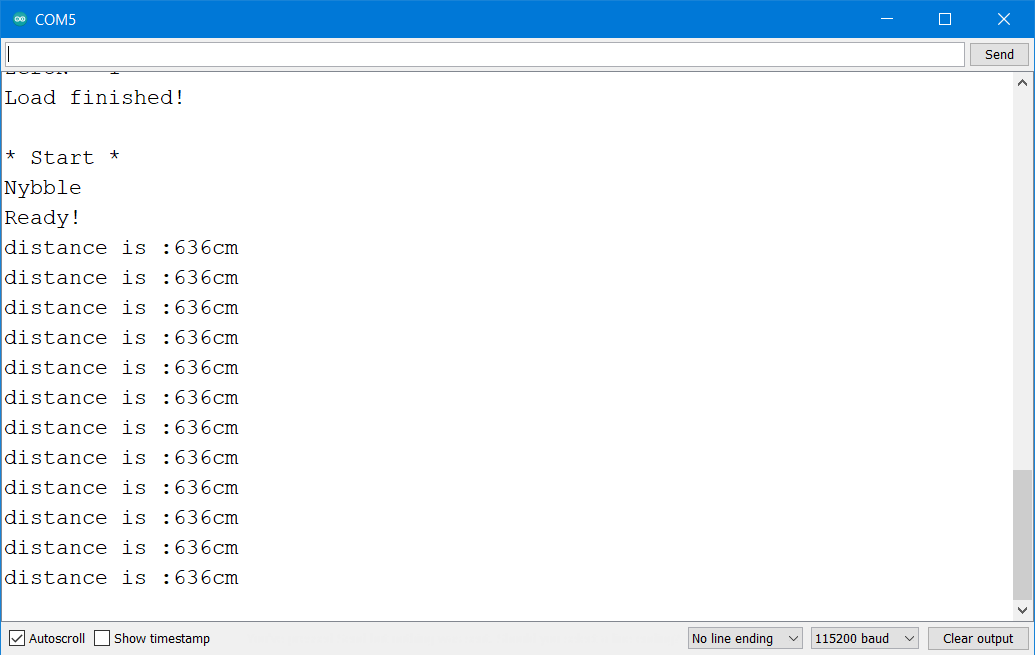
If the Ultrasonic code is uploaded correctly, you can see success messages printed on the [serial monitor](https://guide.petoi.com/arduino-ide/serial-monitor) of Arduino IDE. As shown below:
#### Arduino code demo
Ultrasonic module code realization function: The probe inside the ultrasonic module lights up with different-colored lights according to the different distances monitored by the ultrasonic module in real-time, and Nybble will make different action responses at the same time.
The demo video is as follows:
{% embed url="" %}
#### Mind+ demo code
---
# Agent Instructions
This documentation is published with GitBook. GitBook is the documentation platform designed so that both humans and AI agents can read, navigate, and reason over technical content effectively. Learn more at gitbook.com.
## Querying This Documentation
If you need additional information that is not directly available in this page, you can query the documentation dynamically by asking a question.
Perform an HTTP GET request on the current page URL with the `ask` query parameter, and the optional `goal` query parameter:
```
GET https://guide.petoi.com/extensible-modules/ultrasonic-sensor.md?ask=&goal=
```
`ask` is the immediate question: it should be specific, self-contained, and written in natural language.
`goal` is optional and describes the broader end goal you are ultimately trying to accomplish on behalf of the user. GitBook uses it to tailor the answer towards what is most useful for that goal.
The response will contain a direct answer to the question and relevant excerpts and sources from the documentation.
Use this mechanism when the answer is not explicitly present in the current page, you need clarification or additional context, or you want to retrieve related documentation sections.
 {% endhint %}
## BiBoard
### Hardware setup
#### BiBoard V1 for Bittle X V2 / Bittle X+Arm / Nybble Q
The sensor should connect to the first Grove socket from the top.
{% endhint %}
## BiBoard
### Hardware setup
#### BiBoard V1 for Bittle X V2 / Bittle X+Arm / Nybble Q
The sensor should connect to the first Grove socket from the top.


 {% endhint %}
Attach the ultrasonic sensor to [Nybble's eye](https://youtu.be/g7_ODr_3DTc).
{% embed url="
{% endhint %}
Attach the ultrasonic sensor to [Nybble's eye](https://youtu.be/g7_ODr_3DTc).
{% embed url="