> For the complete documentation index, see [llms.txt](https://guide.petoi.com/llms.txt). Markdown versions of documentation pages are available by appending `.md` to page URLs; this page is available as [Markdown](https://guide.petoi.com/petoi-web-coding-blocks/upload-firmware-using-arduino.md).
# Upload Firmware Using Arduino
This firmware upload method is intended for users familiar with Arduino IDE. For general users, please refer to the previous page: [Upload Firmware Using Petoi Desktop APP](https://guide.petoi.com/desktop-app/firmware-uploader). If you have already uploaded the firmware successfully, please proceed to the next page: [Get Started: Create Your First Block Program](/petoi-web-coding-blocks/get-started-create-your-first-block-program.md).
## Set up BiBoard
### Prepare the ESP32 development environment
Open “**Preferences**” in Arduino IDE, add ESP32 development board URL:
`https://raw.githubusercontent.com/espressif/arduino-esp32/gh-pages/package_esp32_index.json`
Click **OK** to save it and then exit.
Open “**Boards Manager...**” and wait for updates from external board support links. Search “esp32” and install the support package.
{% hint style="warning" %}
Please install the latest available version **2.0.12**. Installing version 2.0.13 and above may cause the motherboard to fail to startup.
{% endhint %}
After showing “**INSTALLED**”, the BiBoard board support package is finished.
### Modify the code file in the package
* #### sdkconfig.h
{% hint style="info" %}
* For Windows:\
C:\Users\\{username}\AppData\Local\Arduino15\packages\esp32\hardware\esp32\2.0.\*\tools\sdk\esp32\qio\_qspi\include\sdkconfig.h
* For Mac:\
/Users/{username}/Library/Arduino15/packages/esp32/hardware/esp32/2.0.\*/tools/sdk/esp32/qio\_qspi/include/sdkconfig.h
* For Ubuntu:\
Arduino root directory/.arduino15 (hidden file)/packages/esp32/hardware/esp32/2.0.12/tools/sdk/esp32/qio\_qspi/include/sdkconfig.h
{% endhint %}
Append a line of code at the end of the file:
```cpp
#define CONFIG_DISABLE_HAL_LOCKS 1
```
### Set up the board options
Please set up the board's upload speed, CPU frequency, etc, as shown in the picture below.
### Choose hardware partition
The **BiBoard V0** uses an ESP32 with a **16M** flash. To simplify, you can use the **default** **4 MB** partition map without a problem. There's plenty of programming space for the standard OpenCatEsp32 firmware.
The **BiBoard V1** uses an ESP32 with a **4M** flash.
#### 4 MB partition
You can use the **Minimal SPIFFS (1.9MB APP with OTA/190KB SPIFFS)**. You can also use other partition schemes under the 4 MB flash limit, such as "No OTA" or "Huge APP".
#### 16 MB partition
Suppose you want to fully utilize the 16 MB flash on **BiBoard V0** (it's unnecessary and takes longer to upload). You can read the user manual for the [Add hardware partition configuration option in Arduino IDE](https://guide.petoi.com/biboard/demo-applications/13.add-hardware-partition-configuration-option-in-arduino-ide).
### Download the source code and install the libraries
{% hint style="info" %}
We keep updating the code as an open-source project. You can star-mark and follow our GitHub repository to get the newest features and bug fixes. You can also share your codes with worldwide OpenCatEsp32 users.
You can check the update history information in the [**ChangeLog.md**](https://github.com/PetoiCamp/OpenCatEsp32/blob/main/ChangeLog.md)**.**
{% endhint %}
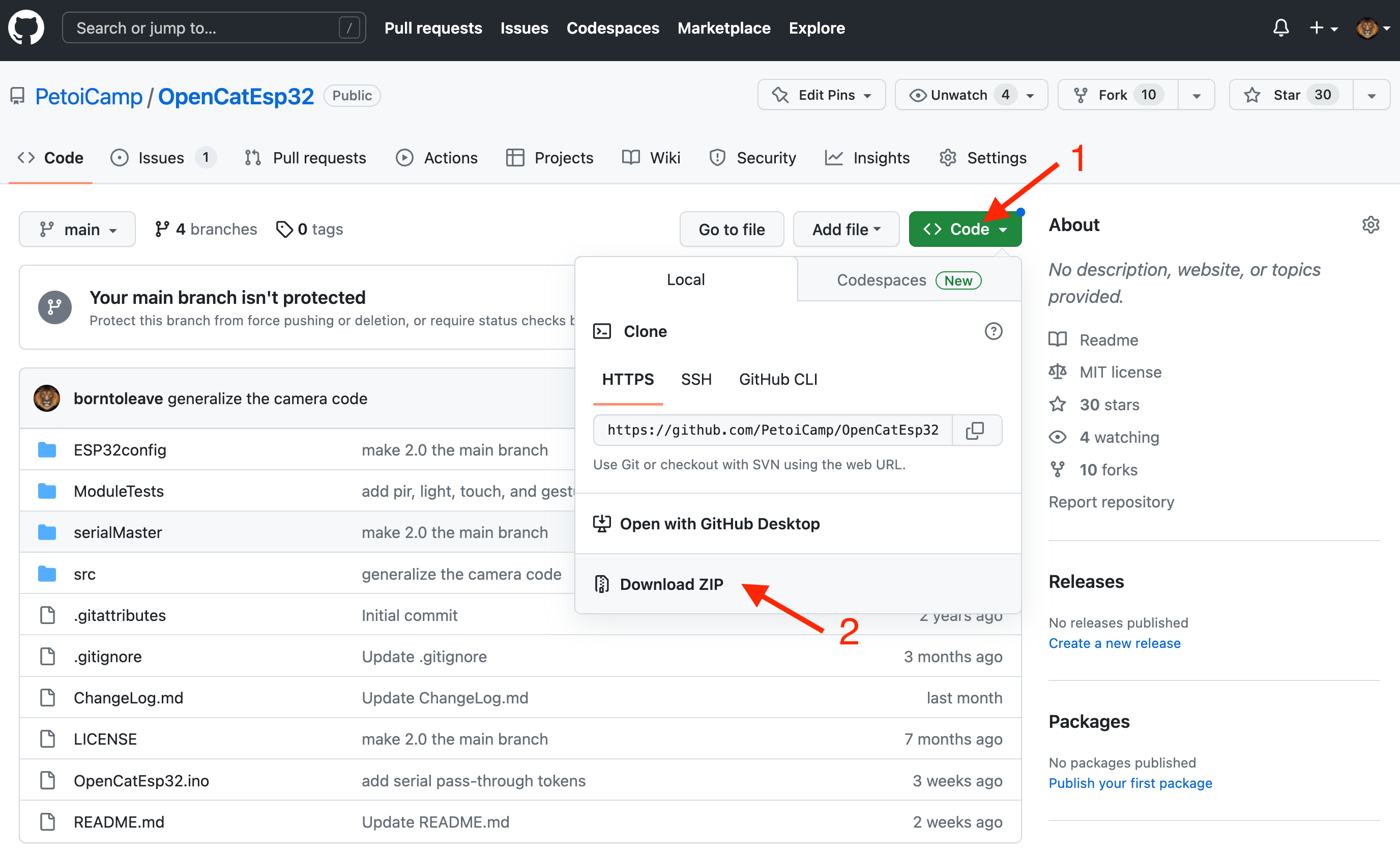
1. Download the OpenCatEsp32 repository from GitHub repository: \
We suggest you utilize GitHub’s version control feature. Otherwise, make sure you download the **WHOLE OpenCatEsp32 FOLDER** every time. All the codes have to be the same version to work together.
2. If you download the Zip file of the codes, you will get an **OpenCatEsp32-main** folder after unzipping. Please rename it to **OpenCatEsp32** before opening the **OpenCatEsp32.ino** so that the two names match.
{% hint style="warning" %}
No matter where you save the folder, the file structure should be:

{% endhint %}
There are several **test\*\*\*.ino** codes in the **ModuleTests** folder. You can upload them separately to test specific modules (I recommend using **testBuzzer.ino** as your first test sketch).
3. Install the libraries
* Download and install the [MU Vision Sensor library](https://github.com/mu-opensource/MuVisionSensor3) into the Arduino IDE.
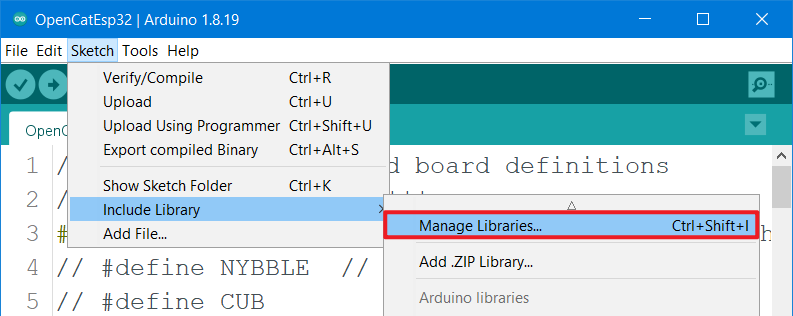
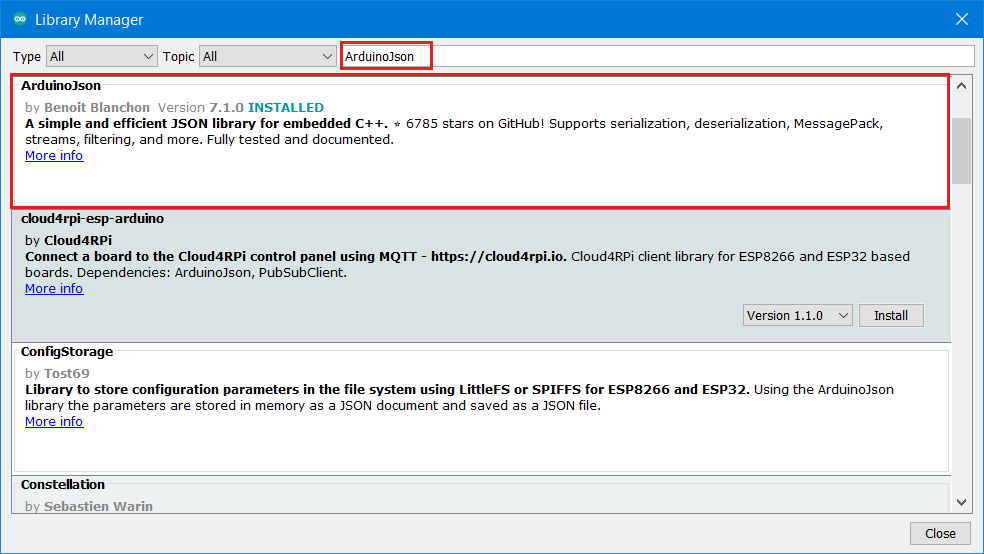
* Install **ArduinoJson** in the Library Manager
* Install **WebSockets** in the Library Manager.
### Download firmware & Petoi Web Coding Blocks source code
* Download the latest version from [Github](https://github.com/PetoiCamp/OpenCatEsp32-Quadruped-Robot/tree/redesignWeb) .
* After the download is complete, unzip the downloaded file and rename the extracted folder "OpenCatEsp32-Quadruped-Robot" to "OpenCatEsp32".
{% hint style="info" %}
This is because the firmware file **OpenCatEsp32.ino** inside must be placed in a folder with the same name.
If you skip this step and try to open **OpenCatEsp32.ino** directly, you will be prompted that it should be placed in a folder with the same name. This will complicate the process, and unless you are very familiar with Arduino's firmware upload procedure, we strongly do not recommend doing so.
{% endhint %}
* Open the **OpenCatEsp32.ino** file in the folder.
### [Connect to BiBoard](/quick-reference/upload-firmware.md#biboard) via USB type-C data cable
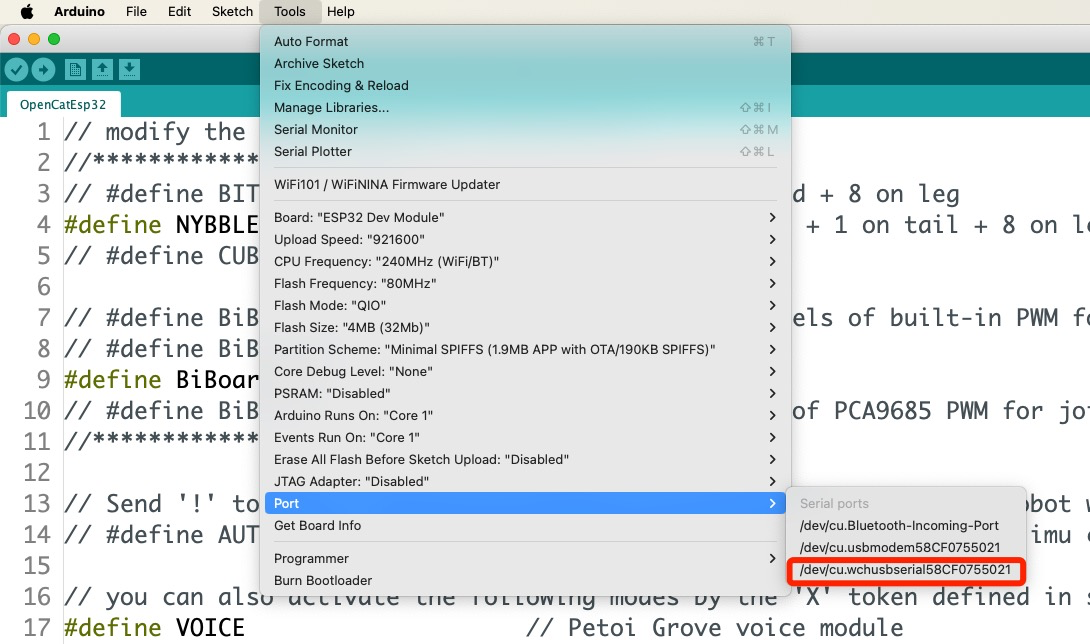
Set the serial port in the Arduino IDE.
(Please note : For Mac user, only choose the **/dev/cu.wchusbserial** port here) :
### 1.7 Compile and upload the firmware
Modify the product type macro definition in **OpenCatEsp32.ino** according to the product type you used. e.g.: **Bittle**
```cpp
3 #define BITTLE // Petoi 9 DOF robot dog: 1 on head + 8 on leg
4 //#define NYBBLE // Petoi 11 DOF robot cat: 2 on head + 1 on tail + 8 on leg
5 //#define CUB
```
Modify the mainboard model macro definition in OpenCatEsp32**.ino** according to the mainboard (BiBoard) version. e.g. : using **BiBoard\_V1\_0**
```cpp
7 // #define BiBoard_V0_1 //ESP32 Board with 12 channels of built-in PWM for joints
8 // #define BiBoard_V0_2
9 #define BiBoard_V1_0
10 // #define BiBoard2 //ESP32 Board with 16 channels of PCA9685 PWM for joints
```
If the robot(**Bittle X+Arm**) has the robotic arm, you should also activate the macro definition as follows:
```cpp
26 #define ROBOT_ARM // for attaching the head clip arm
```
Otherwise, please comment out this line of code.
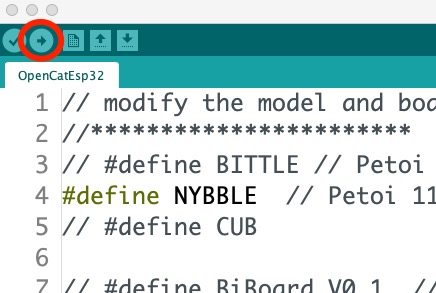
After the modification is complete, click the Upload button (as shown below) to upload the sketch **OpenCatEsp32.ino**, and the changes in the code file will be automatically saved.
---
# Agent Instructions
This documentation is published with GitBook. GitBook is the documentation platform designed so that both humans and AI agents can read, navigate, and reason over technical content effectively. Learn more at gitbook.com.
## Querying This Documentation
If you need additional information that is not directly available in this page, you can query the documentation dynamically by asking a question.
Perform an HTTP GET request on the current page URL with the `ask` query parameter, and the optional `goal` query parameter:
```
GET https://guide.petoi.com/petoi-web-coding-blocks/upload-firmware-using-arduino.md?ask=&goal=
```
`ask` is the immediate question: it should be specific, self-contained, and written in natural language.
`goal` is optional and describes the broader end goal you are ultimately trying to accomplish on behalf of the user. GitBook uses it to tailor the answer towards what is most useful for that goal.
The response will contain a direct answer to the question and relevant excerpts and sources from the documentation.
Use this mechanism when the answer is not explicitly present in the current page, you need clarification or additional context, or you want to retrieve related documentation sections.






 {% endhint %}
* Open the **OpenCatEsp32.ino** file in the folder.
{% endhint %}
* Open the **OpenCatEsp32.ino** file in the folder.